
Can I digitize a logo for embroidery myself? Yes, you absolutely can, with the right tools and a bit of practice. This guide will walk you through the entire process, from preparing your artwork to creating the final embroidery files. We’ll cover everything you need to know to transform your logo into a stitch-ready design.
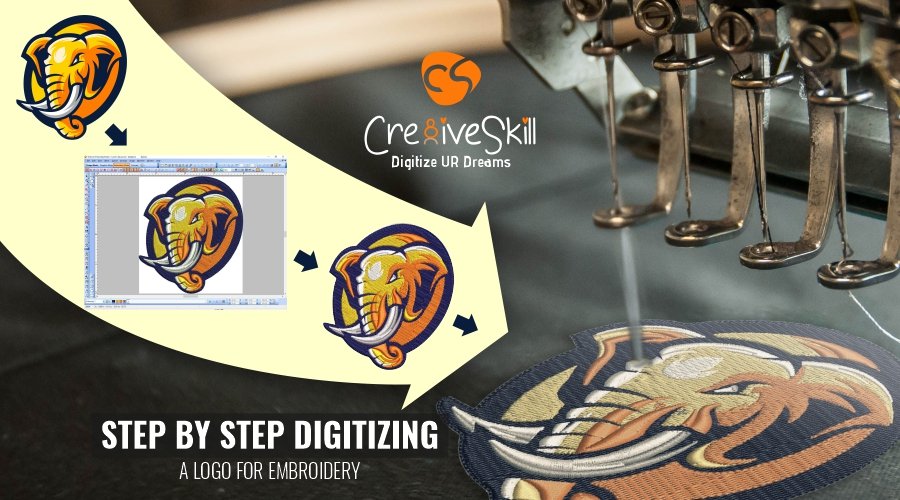
Image Source: www.cre8iveskill.com
What You Need Before You Start
To successfully digitize a logo for embroidery, you’ll need a few key things:
- Your Logo: A high-quality digital image of your logo.
- Embroidery Software: Specialized software designed for digitizing embroidery.
- A Computer: A reasonably modern computer to run the software.
- Patience and Practice: Digitizing is a skill that improves with time.
Preparing Your Logo for Digitizing
The quality of your final embroidery heavily relies on the quality of the initial artwork. Think of it as the foundation of your digital creation.
Choosing the Right Artwork Format
For vectorizing logo designs, you want to start with a clean, scalable image.
- Vector Files (AI, EPS, SVG): These are ideal. They are made of mathematical paths, meaning you can resize them infinitely without losing quality. This makes the digitizing artwork process much smoother.
- High-Resolution Raster Files (PNG, JPG): If you only have a raster image, make sure it’s as high a resolution as possible (at least 300 DPI) and has a clean background, preferably transparent. Low-resolution or pixelated images will lead to poor results.
Cleaning Up Your Artwork
Before you even open your embroidery software, spend time cleaning up your logo.
- Remove Unnecessary Elements: Get rid of any background clutter or stray lines.
- Simplify Details: Intricate details in a logo might not translate well into embroidery, especially at smaller sizes. Simplify where possible without losing the essence of the design.
- Check Color Separations: If your logo has many colors, consider if they are all necessary for embroidery. Sometimes reducing the color palette can simplify the process and improve the final look.
The Digitizing Process: Turning Art into Stitches
This is where the magic happens. Digitizing embroidery designs involves telling your embroidery machine exactly where and how to place each stitch.
Step 1: Importing Your Artwork into Embroidery Software
Most embroidery software allows you to import various file formats.
- Open your chosen embroidery software.
- Go to “File” > “Open” or “Import.”
- Navigate to where you saved your logo file and select it.
Your logo will now appear on the digital canvas of your software.
Step 2: Tracing and Creating Stitches
This is the core of digitizing artwork. You’ll essentially “trace” your logo, but instead of drawing lines, you’re defining stitch types and directions.
Common Stitch Types and Their Uses
Different stitch types create different textures and effects in embroidery.
| Stitch Type | Description | Best For |
|---|---|---|
| Satin Stitch | Dense, parallel stitches that create a smooth, shiny surface. | Lettering, small shapes, borders, outlines. |
| Running Stitch | Simple, single stitches that form outlines or fill small areas. | Outlines, thin details, sketching effects. |
| Fill Stitch | Various patterns of stitches (e.g., tatami, complex fills) to cover areas. | Large solid areas, shading, texture. |
| 3D Foam Stitch | Stitches laid over foam to create a raised, puffy effect. | Raised lettering, logos requiring dimension. |
The Digitizing Workflow
The exact tools and steps vary between software, but the general workflow is similar:
- Outline Sections: For each color or distinct element in your logo, you’ll create an outline. You’ll typically use tools that allow you to place stitch points.
- Select Stitch Type: Choose the appropriate stitch type for each section (e.g., satin stitch for lettering, fill stitch for a background shape).
- Define Stitch Direction: The direction of your stitches affects how light reflects off the fabric and the overall look. For satin stitches, aim for a consistent direction within a shape.
- Fill Areas: Use fill stitch tools to cover larger areas. You can often adjust the density, pattern, and direction of these fills.
- Add Details: Use running stitches for finer details or outlines that aren’t part of a satin-stitched area.
- Color Management: Assign the correct thread colors to each section of your design.
Key Concept: When converting image to stitch, you’re not simply converting pixels. You’re interpreting the image and manually creating the stitch data that will form the design.
Step 3: Optimizing Your Design for Embroidery
A good digitizer doesn’t just trace; they optimize. This step ensures your design stitches out beautifully and efficiently.
Underlay Stitches
Underlay is a layer of stitches placed beneath the main stitches. It provides a stable base, helps fabric lie flat, and prevents puckering.
- Woven Underlay: A criss-cross pattern.
- Edge Underlay: Placed along the edges of satin stitches.
- Fill Underlay: Used beneath fill stitches.
Your embroidery software will have options for adding different types of underlay.
Pull Compensation
Fabrics and threads pull and stretch during the stitching process. Pull compensation is a technique where stitches are slightly extended beyond the intended edge to counteract this pull, ensuring clean, sharp lines. This is particularly important for satin stitches.
Density and Stitch Count
- Density: Refers to how close together the stitches are. Too low, and you’ll see fabric through the stitches. Too high, and the fabric can pucker, or you’ll waste thread.
- Stitch Count: The total number of stitches in your design. This impacts the sewing time and the overall look. Higher stitch counts generally mean more detail and density.
When digitizing patterns, you’ll adjust density based on the stitch type, fabric, and desired outcome.
Trim Commands and Color Changes
- Trims: At the end of a color or section, you’ll often want the machine to cut the thread. Your software allows you to insert automatic trim commands.
- Color Changes: The software will also generate commands for the machine to stop and change thread color.
Step 4: Saving Your Embroidery Files
Once your design is digitized and optimized, you need to save it in a format your embroidery machine can read.
Common Embroidery File Formats
Different embroidery machines and software use various file formats. Some of the most common include:
- DST (Tajima): A very widely used format that contains stitch data but often omits color information.
- PES (Brother/Babylock): Popular format that includes color information and machine-specific data.
- JEF (Janome): Another machine-specific format.
- EXP (Melco): Commonly used by Melco machines.
- VP3 (Husqvarna Viking/Pfaff): Contains stitch data and design properties.
- XXX (Singer): Singer’s proprietary format.
Your embroidery software will allow you to export your design in multiple embroidery file formats. Always check which format your specific embroidery machine requires.
Choosing the Right Embroidery Software
The software you choose is crucial. There are many options available, ranging from professional-grade to more beginner-friendly.
Professional Embroidery Software
These are powerful, feature-rich programs often used by professional digitizers and embroidery businesses. They offer extensive control over every aspect of the digitizing process.
- Wilcom Embroidery Studio: Considered the industry standard by many. Offers advanced tools for all types of embroidery, including 3D effects, lettering, and automatic digitization.
- ** a&a Software Embird:** A comprehensive suite with modules for digitizing, editing, lettering, and more.
- Wings’ eMobilPro: A robust option with advanced features for professional use.
Mid-Range and Beginner-Friendly Software
These programs are often more affordable and easier to learn, making them great for hobbyists or those new to digitizing.
- PE-Design (Brother): User-friendly software that integrates well with Brother machines. Offers good features for beginners and intermediate users.
- Embroidery Legacy: Known for its intuitive interface and helpful wizards.
- Hatch Embroidery (by Wilcom): A more accessible version of Wilcom software, designed for home users and small businesses.
What to Look for in Embroidery Software:
- Ease of Use: How intuitive is the interface?
- Toolset: Does it have the necessary tools for the types of designs you want to create?
- File Format Support: Can it export to your machine’s required format?
- Learning Resources: Are there tutorials and support available?
- Cost: Does it fit your budget?
When to Use a Digitizing Service
While learning to digitize yourself is rewarding, there are times when using a professional digitizing service is the best option.
Reasons to Outsource Digitizing:
- Complex Designs: Logos with intricate details, gradients, or photographic elements can be challenging to digitize effectively.
- High Volume Needs: If you have many logos or large orders, a professional service can deliver faster and more consistently.
- Time Constraints: If you’re on a tight deadline, outsourcing saves you valuable time.
- Lack of Software/Expertise: If you don’t have the right software or the time to learn it, a service is ideal.
What to Expect from a Digitizing Service:
When you send your logo to a digitizing service, they will typically:
- Review Your Artwork: They’ll check its suitability for embroidery.
- Digitize the Logo: Using their professional embroidery software, they’ll create the stitch file.
- Optimize the Design: They’ll ensure proper underlay, pull compensation, and stitch density.
- Provide File Formats: You’ll usually receive the design in multiple embroidery file formats.
- Offer Revisions: Good services will allow for minor revisions if the initial stitch-out isn’t perfect.
Cost Comparison: While professional digitizing service costs money upfront, it can save you the investment in software and the time spent learning. The cost typically depends on the complexity and size of the logo.
Advanced Digitizing Techniques
Once you’ve mastered the basics, you can explore more advanced techniques to elevate your embroidery.
Creating 3D Puff Embroidery
This technique uses foam backing placed under the stitches. The stitches go over the foam, and then the excess foam is trimmed away, leaving a raised, “puffed” effect.
- Software Requirements: Your embroidery software needs to support 3D foam settings, allowing you to control stitch density and coverage over the foam.
- Foam Type: Different thicknesses and densities of foam are available.
- Stitch Settings: You’ll need to use a higher stitch density and satin stitch for 3D designs to ensure good coverage over the foam and a clean edge after trimming.
Implementing Gradients and Shading
Achieving smooth gradients in embroidery is challenging but not impossible.
- Fill Stitch Variations: Experiment with different fill stitch patterns (like complex fills or satin gradients) and adjust density and angle to create the illusion of shading.
- Color Blending: Careful selection of thread colors can help mimic gradients. You might use closely related shades of a color to transition smoothly.
- Manual Stitching: For the most precise shading, some digitizers manually place stitches to create a gradual color transition.
Digitizing for Different Fabrics
The fabric you’re embroidering on significantly impacts how your design stitches.
- Heavy Fabrics (Denim, Canvas): Often require less dense stitches and good underlay to prevent the fabric from distorting.
- Stretchy Fabrics (T-shirts, Polos): Need strong underlay to stabilize the fabric and prevent pulling. Pull compensation is also critical here.
- Delicate Fabrics (Silk, Lace): Require lighter stitch density, finer needles, and potentially tear-away or water-soluble stabilizers.
When digitizing artwork for a specific fabric, always consider its weight, stretch, and weave.
Troubleshooting Common Digitizing Issues
Even with practice, you might encounter problems. Here are some common issues and how to fix them:
Puckering
Cause: Stitches are too dense, fabric is too thin or stretchy, or insufficient underlay.
Solution: Reduce stitch density, increase underlay, use more stabilizer, or adjust pull compensation.
Gaps in Satin Stitches
Cause: Insufficient stitch density, poor pull compensation, or incorrect stitch direction.
Solution: Increase satin stitch density, adjust pull compensation, or check stitch direction.
Wobbly Outlines
Cause: Inconsistent stitch length, lack of underlay, or fabric distortion.
Solution: Ensure consistent stitch length for satin stitches, add appropriate underlay, and use a good stabilizer.
Thread Breaks
Cause: Dull needle, incorrect needle type, machine tension issues, or excessively dense stitches.
Solution: Change the needle, ensure correct needle and thread tension, and check stitch density.
Frequently Asked Questions (FAQ)
Q1: What is the difference between vectorizing a logo and digitizing it for embroidery?
Vectorizing a logo means creating or converting a logo into a format made of mathematical paths (like AI, EPS, SVG). This makes the logo scalable without losing quality. Digitizing for embroidery involves taking that artwork (or a high-quality image) and creating a stitch file that an embroidery machine can read, defining stitch types, directions, and densities. One prepares the artwork; the other creates the embroidery pattern.
Q2: Can I use regular graphic design software like Photoshop or Illustrator for embroidery digitizing?
While graphic design software is essential for vectorizing logo designs and preparing artwork, they cannot directly create embroidery files. You need specialized embroidery software for the actual digitizing artwork process, as it translates visual elements into stitch data. You can use Illustrator to prepare your artwork, then import it into embroidery software.
Q3: How long does it typically take to digitize a logo?
The time can vary greatly depending on the complexity of the logo and the digitizer’s skill. A simple text logo might take 15-30 minutes, while a complex, multi-colored logo with detailed shading could take several hours. Professional digitizing service providers have optimized workflows to deliver efficiently.
Q4: What is the stitch count of a digitized logo?
The stitch count refers to the total number of stitches in the final embroidery file. This depends on the size of the logo, the complexity, and the density of the stitches used. A small, simple logo might have a few thousand stitches, while a large, detailed design could have 50,000 or more.
Q5: Do I need a special embroidery machine to use digitized files?
Yes, you need a machine specifically designed for embroidery. These machines read the machine embroidery files (like DST, PES, JEF) and use the stitch data to stitch your design onto fabric. Standard sewing machines cannot process these files.
Q6: How do I ensure my logo looks good on different garments?
This involves careful digitizing artwork with consideration for the fabric type. Use appropriate underlay and stitch settings for each fabric, and test stitch-outs whenever possible. A good digitizer will also advise on the best placement and size for different garments.
Q7: What are the best practices for naming my embroidery files?
Use clear, descriptive names that include the logo name, size, and perhaps the garment it’s intended for (e.g., “CompanyLogo_LeftChest_3in.DST”). This helps with organization, especially if you have many digitizing patterns or designs.
Conclusion
Digitizing a logo for embroidery is a blend of art and technical skill. By preparing your artwork correctly, understanding your embroidery software, and practicing the principles of stitch creation, you can transform any logo into a beautiful embroidered piece. Whether you choose to learn the craft yourself or utilize a professional digitizing service, the goal is always the same: to create high-quality machine embroidery files that bring your designs to life stitch by stitch.