
What is embroidery digitizing? Embroidery digitizing is the process of turning a regular image or design into a format that an embroidery machine can understand. Can I digitize my own embroidery? Yes, you can digitize your own embroidery with the right software and knowledge. Who is embroidery digitizing for? It’s for hobbyists, small businesses, and anyone who wants to create custom embroidered items.
Digitizing is the magic behind beautiful custom embroidery. It’s how a flat image, like a company logo or a fun graphic, gets translated into a series of stitches that an embroidery machine can sew. This guide will walk you through everything you need to know to get started. We’ll cover the tools you’ll need, the basic steps, and some important tips for success.
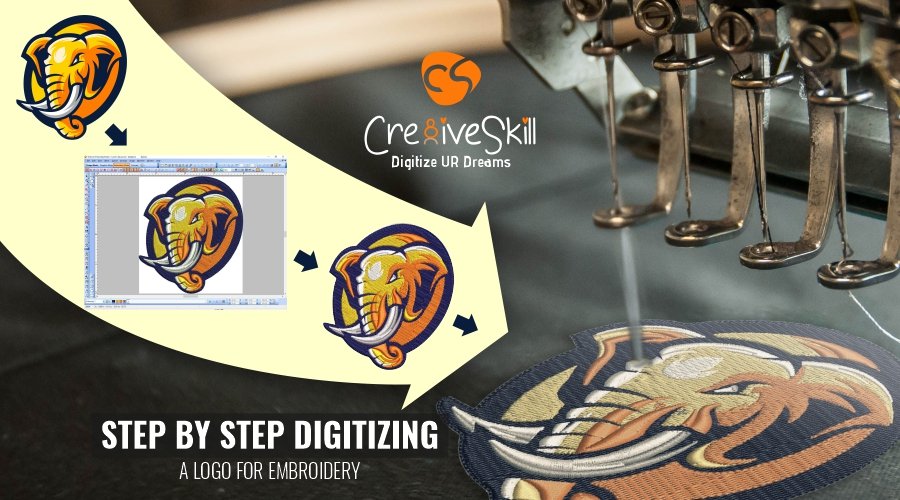
Image Source: www.cre8iveskill.com
What is Embroidery Digitizing?
Embroidery digitizing is the art and science of creating stitch files. Think of it like translating a language. A regular image is one language, and the stitch file is another language that only embroidery machines speak. This translation process involves converting artwork into a series of commands that tell the machine where to move, what color thread to use, and how many stitches to make. This allows for the creation of intricate and detailed machine embroidery patterns.
Why is Digitizing Important?
Without digitizing, your embroidery machine wouldn’t know what to sew. It’s the bridge between your creative vision and the physical stitches on fabric. Good digitizing ensures that your design stitches out cleanly, looks professional, and holds up well over time. Poor digitizing can lead to skipped stitches, puckering, thread breaks, and a generally messy appearance.
The Digitizing Process: A Step-by-Step Approach
Step 1: Getting Your Artwork Ready
Before you can digitize, you need good artwork. This is the foundation of your embroidered design.
Preparing Your Artwork
- Vector vs. Raster: Ideally, start with vector artwork. This means it’s made of mathematical lines and curves, not pixels. Vector files (like AI or EPS) can be scaled infinitely without losing quality. Raster files (like JPG or PNG) are made of pixels. If a raster image is too small or low resolution, it will look blocky when enlarged for embroidery.
- Clean Lines: Ensure your artwork has clean, well-defined lines and shapes. Avoid fuzzy edges or too much detail that might get lost in stitches.
- Color Separation: Think about how colors will translate to thread. Some software can help with this, but a clear color plan from the start is helpful.
- Simplicity is Key: For beginners, simpler designs are much easier to digitize. Complex designs can be challenging and require more advanced techniques.
Tip: If your artwork is a raster image, you might need to convert it to a vector format first using software like Adobe Illustrator or Inkscape. This process is often called vectorizing.
Step 2: Choosing Your Embroidery Digitizing Software
The right software is crucial for digitizing. There are many options available, ranging from professional-grade programs to simpler, more user-friendly applications.
Popular Embroidery Digitizing Software
- Wilcom Embroidery Studio: Considered the industry standard for professional digitizers. It’s powerful but has a steep learning curve and is expensive.
- Embrilliance Essentials/StitchArtist: A popular choice for home and hobbyist digitizers. It’s more affordable and easier to learn. StitchArtist adds advanced digitizing tools.
- PE-Design (Brother): Developed by Brother, this software is great for those who use Brother embroidery machines. It offers a good balance of features and ease of use.
- Janome Digitizing Software: Similar to PE-Design, this software is tailored for Janome machine users.
- Inkscape with Extensions: Inkscape is a free vector graphics editor. With specific extensions (like “Inkscape-Embroidery”), it can be used for basic digitizing.
Considerations When Choosing Software:
- Your Budget: Software prices vary significantly.
- Your Skill Level: Are you a beginner or an experienced digitizer?
- Your Embroidery Machine: Some software is better integrated with certain machine brands.
- Features Needed: Do you need to convert simple logos, create complex lettering, or design intricate machine embroidery patterns from scratch?
Step 3: The Digitizing Process Explained
Once you have your software, you’ll start the actual digitizing. This involves converting your artwork into stitch data.
Converting Artwork to Embroidery Stitches
This is where the magic happens. You’ll use the tools within your embroidery digitizing software to trace your artwork and define stitch types.
Key Stitch Types:
- Satin Stitch (or Tatami Stitch): Used for solid areas and fills. Stitches run parallel and close together, creating a smooth, dense fill. The density and angle of the stitches are critical for a good look and to avoid puckering.
- Run Stitch: A simple stitch that goes back and forth. Used for outlines, details, and lettering.
- Embroidery Fill (or Gradient Fill): Can create interesting textures and shading effects within a design.
- Motif Fill: Uses pre-defined patterns or motifs to fill an area, adding decorative texture.
- Cross Stitch: Mimics hand cross-stitching.
Digitizing Techniques:
- Manual Digitizing: This is the most common and often the best method for creating high-quality designs. You manually select areas of your artwork and define stitch types, stitch direction, underlay, and density. This gives you complete control.
- Automatic Digitizing (Convert to Stitch): Some software offers an automatic conversion feature where you can click a button and it tries to convert your artwork. While quick, this often produces suboptimal results that require manual editing. It’s generally better for simple, solid shapes.
- Vector to Embroidery: If your artwork is in vector format, the software can often interpret these lines and shapes to create stitches more accurately than with raster images.
Key Parameters You’ll Control:
- Stitch Type: Satin, run, fill, etc.
- Stitch Direction/Angle: Crucial for satin stitches to create smooth curves and avoid distortion.
- Stitch Density: How close together stitches are. Too dense can cause puckering; too sparse can leave gaps.
- Underlay: Additional stitches placed beneath the main stitches to help flatten the fabric, prevent puckering, and give the top stitches definition. Common types include centerline underlay, zigzag underlay, and edge run.
- Pull Compensation: A technique to counteract the fabric’s tendency to pull stitches in, ensuring edges stay crisp.
- Object Properties: Defining fills, outlines, and details of your design.
Step 4: Saving Your Design in the Correct Embroidery File Format
Once your design is digitized, you need to save it in a format your embroidery machine can read.
Common Embroidery File Formats
| File Format | Description | Common Machine Brands | Notes |
|---|---|---|---|
| .PES | Brother/Babylock/Bernette | Brother, Babylock, Bernette | Very common, supports extensive machine data like trims and stops. |
| .JEF | Janome/New Home/Elna | Janome, New Home, Elna | Another widely used format, good for many home machines. |
| .DST | Tajima (and many others) | Tajima, Barudan, Melco, etc. | A “machine language” format. Lacks color change and trim commands. |
| .EXP | Melco | Melco | Versatile format, often used by professional digitizers. |
| .VIP | Viking/Husqvarna | Viking, Husqvarna | Supports advanced machine functions. |
| .VP3 | Viking/Husqvarna (newer) | Viking, Husqvarna | Replaces .VIP, also supports advanced features. |
| .XXX | Singer | Singer | Similar to .PES in terms of data. |
| .ART | Bernina | Bernina | Bernina’s proprietary format, requires specific software for editing. |
- PES file creation is essential if you own a Brother machine.
- JEF file conversion is necessary for Janome users.
- DST file editing is useful if you’re working with designs from professional services that might provide .DST files, as you may need to add color changes or trims.
Recommendation: Always save your original digitized file in the software’s native format (e.g., .EMF for Embrilliance) as well as the machine-specific format you need. This allows you to go back and make edits later without losing quality.
Step 5: Testing and Editing
The first stitch-out is critical. It tells you what works and what doesn’t.
Fine-Tuning Your Design
- Test Stitch-Out: Always stitch your digitized design on a piece of scrap fabric similar to what you plan to use.
- Analyze the Results: Look for common issues:
- Puckering: Too much density, incorrect underlay, or fabric choice.
- Skipped Stitches: Thread tension issues, needle problems, or the needle not penetrating the fabric properly due to dense stitches or the wrong needle type.
- Gaps: Insufficient density or incorrect stitch angles.
- Design Distortion: Stitches pulling the fabric, especially on curved areas.
- Make Adjustments: Return to your embroidery digitizing software to make corrections. This might involve adjusting stitch density, changing stitch angles, adding or modifying underlay, or even re-digitizing certain sections.
Tip: Don’t be afraid to iterate. Digitizing is often a process of trial and error. Each test stitch-out provides valuable feedback.
Advanced Digitizing Concepts
As you become more comfortable, you can explore more advanced techniques.
Working with Lettering
Digitizing text can be tricky. The size of the lettering significantly impacts how it stitches.
- Font Choice: Some fonts are designed for embroidery and stitch well. Others, especially very thin or script fonts, can be challenging.
- Letter Spacing (Kerning): Adjusting the space between letters is crucial for readability and a polished look.
- Stitch Type for Lettering: Often, a simple run stitch is used for outlines, while satin stitch can be used for filled letters.
Digitizing for Different Fabrics
The fabric you’re embroidering on greatly influences your digitizing decisions.
- Knits: Often require more underlay and looser stitch density to prevent stretching and distortion.
- Wovens: Can generally handle denser stitches and less underlay.
- Stretchy Fabrics: Need special attention to pull compensation and underlay.
- Towels: Might need a puff or 3D foam underlay to create a raised effect and prevent stitches from sinking into the terry loops.
Creating Machine Embroidery Patterns from Vector Graphics
A common workflow is to take a vector to embroidery conversion.
- Design in Vector Software: Create your artwork in Adobe Illustrator, CorelDRAW, or Inkscape.
- Export as Vector: Save your artwork in a vector format like .AI, .EPS, or .SVG.
- Import into Digitizing Software: Import the vector file into your embroidery digitizing software.
- Trace and Convert: Use the software’s tools to trace the vector shapes and assign stitch types, densities, and directions. This manual tracing method usually yields better results than purely automatic conversion.
Custom Embroidery Design
This is where your creativity shines!
- Unique Designs: Digitizing allows you to create truly unique, custom embroidery design pieces that aren’t available off the shelf.
- Personalization: Add names, monograms, or personal messages to garments and gifts.
- Logo Digitization: A huge part of custom embroidery is digitizing company logos for apparel, hats, and promotional items.
When to Consider Professional Digitizing Services
While learning to digitize yourself is rewarding, there are times when using professional digitizing services is the best option.
- Complex Designs: Intricate artwork, detailed portraits, or designs with many small elements can be very time-consuming and difficult to digitize well.
- Urgent Projects: If you have a tight deadline, professional services can often deliver high-quality results quickly.
- High Volume: For businesses needing many designs or large batches of embroidered items, outsourcing digitizing can be more efficient.
- Lack of Time or Software: If you don’t have the time to learn digitizing or invest in expensive software, professional services are a great alternative.
When using digitizing services, ensure they provide you with the necessary embroidery file formats for your machine and that they are experienced in digitizing for the types of fabrics you use.
Common Pitfalls to Avoid
- Starting with Low-Quality Artwork: Garbage in, garbage out. Always begin with the best possible source image.
- Using Only Automatic Conversion: Relying solely on automatic stitch generation will likely lead to poor results that require extensive editing.
- Ignoring Underlay: Underlay is critical for a professional finish. Don’t skip it.
- Over-Densifying Stitches: More stitches don’t always mean better. Too many can cause fabric distortion and damage your machine.
- Not Testing: Always perform a test stitch-out before committing to your final project.
- Using the Wrong Needle/Thread: Ensure your sewing machine needles, thread, and stabilizer are appropriate for your fabric and design.
Frequently Asked Questions (FAQ)
- Q: What is the difference between digitizing and embroidery itself?
- A: Digitizing is the creation of the stitch file that tells the embroidery machine what to do. Embroidery is the actual process of the machine sewing the stitches onto the fabric using that file.
- Q: Can I use any software to convert any image to an embroidery file?
- A: No. While some software has automatic conversion tools, the quality varies greatly. For best results, specific embroidery digitizing software is needed, and manual editing is often required.
- Q: How long does it take to digitize a design?
- A: This varies greatly depending on the complexity of the design and the skill of the digitizer. A simple logo might take 30 minutes to a couple of hours, while a highly detailed or complex design could take many hours or even days.
- Q: What is the best embroidery file format?
- A: There isn’t one “best” format, but rather the most appropriate format for your specific embroidery machine. PES file creation is ideal for Brother, JEF file conversion for Janome, and so on. DST file editing might be needed for universal compatibility but lacks color change information.
- Q: How do I digitize a photograph for embroidery?
- A: Digitizing photographs is an advanced technique. It often involves simplifying the image, reducing colors, and using specialized fills and stitch techniques to mimic shading and detail. It’s typically best left to experienced digitizers or professional digitizing services.
By following this guide, you’ll be well on your way to mastering the art of embroidery digitizing. It’s a skill that opens up a world of creative possibilities for personal projects and business ventures alike, allowing you to bring your unique custom embroidery design ideas to life.