
Do you want to know “how do I digitize for embroidery?” This guide helps you learn. Digitizing for embroidery means turning a picture into a stitch file. This file tells your embroidery machine what to sew. It is a key step to make your own custom designs. You need special embroidery digitizing software for this. This software lets you take a simple image and convert image to embroidery file. This file guides the needles, colors, and stitches of your machine. Without it, your machine cannot sew your chosen design.
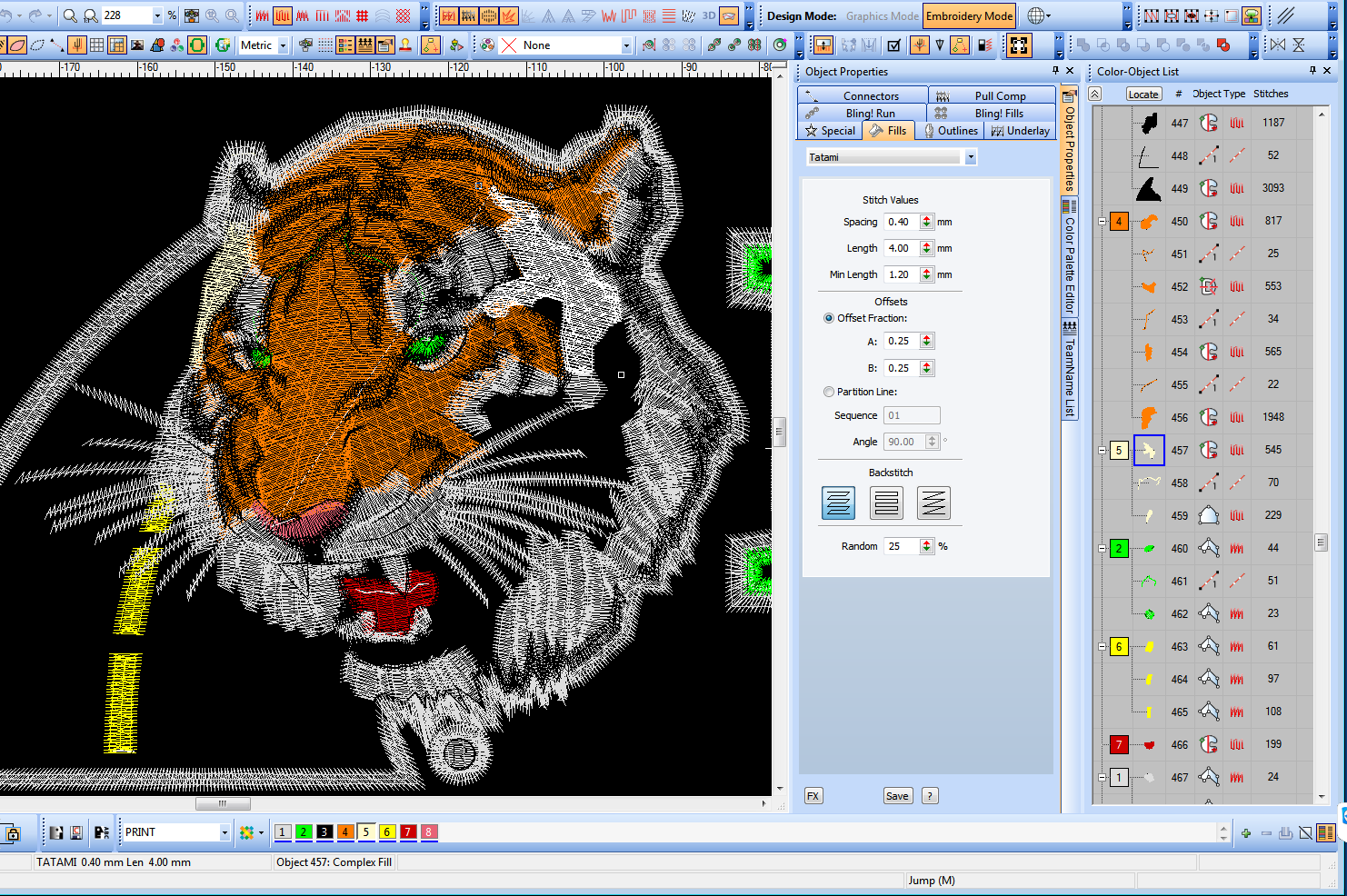
Image Source: www.mrxstitch.com
Grasping Digitizing for Embroidery
Embroidery digitizing is very important. It is the bridge from an idea to a finished stitch. You might have a logo or a picture. Your embroidery machine does not see pictures. It only understands stitch data. This data tells it where to put each needle punch. It says which color thread to use. It tells how long each stitch should be. Good digitizing makes your finished product look great. Bad digitizing leads to messy stitches. It can cause thread breaks or fabric puckering.
When you learn embroidery digitizing, you gain power. You can make unique items. You can create gifts. You can even start a business. It sounds hard, but it is a skill anyone can learn.
Why Digitizing Matters So Much
Think of a painter. They use a brush to put paint on canvas. For embroidery, digitizing is your “brush.” You use it to plan every stitch. You tell the machine exactly what to do.
- Quality: Good digitizing means neat, strong stitches.
- Efficiency: Proper files make your machine run smoothly. This saves time and thread.
- Creativity: You can bring any image to life with stitches.
- Control: You control every detail, from start to finish.
The Goal of Digitizing
The main goal is to make a file your machine can read. This file has stitch commands. These commands are things like:
* Start here.
* Sew this many stitches.
* Use this color thread.
* Cut the thread.
* Move to a new spot.
These commands become a special embroidery file types. Common ones are DST, PES, JEF, and EXP. Each type works with certain embroidery machines.
Starting Your Digitizing Journey: Key Steps
Getting started means following a few clear steps. It begins with your chosen image. Then you use special software. Finally, you save your work.
Preparing Your Image for Stitching
Before you start digitizing, you need a good image. Not all pictures work well.
- High Quality: Use a clear, sharp image. Blurry images make it hard to digitize.
- Simple Design: Start with simple designs. Avoid tiny details at first.
- Vector vs. Raster:
- Raster images: These are made of tiny dots (pixels). Examples are JPG, PNG, GIF. They can look blocky when made bigger.
- Vector images: These are made of lines and curves. Examples are SVG, AI, EPS. They can be resized without losing quality. Vector images are often best for digitizing. If you can, get a vector file. If not, a high-quality raster image is fine for beginners.
You will convert image to embroidery file in the next steps. But the starting image sets the stage.
Selecting Your Tool: Embroidery Digitizing Software
You need embroidery digitizing software. This is a program you install on your computer. It lets you draw stitches over your image. There are many options available. Some are free, some cost a lot.
When you look for the best embroidery digitizing software, think about:
* Your Budget: Free tools are basic. Paid tools offer more features.
* Your Skill Level: Some software is easy for beginner embroidery digitizing. Others are for pros.
* Your Needs: Do you want to do simple text? Or complex designs?
* Your Machine: Make sure the software saves files your machine can read.
Popular Software Choices
Many software options exist. Here are a few types:
- Beginner-Friendly Software: Often cheaper or free. Simple tools. Good for learning the basics. Examples include some free web tools or basic versions of paid software.
- Mid-Range Software: A good balance of features and cost. Offers more control. Embrilliance StitchArtist and Hatch Embroidery are popular choices.
- Professional Software: Very powerful, but costly. Used by businesses. Wilcom Embroidery Studio is a top example.
The Actual Digitizing Process
Once you have your image and software, the fun begins. This is where you create the stitches.
- Load Your Image: Open your embroidery digitizing software. Import your image file. It will show up on your screen.
- Set Design Size and Type: Tell the software how big your design will be. Tell it what kind of fabric you will sew on. These settings affect the stitches.
- Choose Your Stitches: This is the core of digitizing. You will use different stitch types.
- Fill Stitch: For large areas. It fills a shape with many stitches. Think of a solid color patch.
- Satin Stitch: For narrow shapes and outlines. It creates a smooth, raised look. Great for letters and borders.
- Run Stitch: A simple line of stitches. Used for outlines, details, or connecting parts.
- Drawing Your Stitches:
- Manual Digitizing for Embroidery: You draw paths and tell the software where to put stitches. This gives you the most control. You decide every stitch angle and density. This is what true digitizing is about. It takes practice.
- Auto-Digitizing: Some software can try to turn an image into stitches on its own. This is faster. But the results are often poor. They might have too many stitches or wrong stitch types. It is not recommended for good quality work. Think of it as a rough draft. You will almost always need to fix it manually.
Essential Digitizing Techniques Embroidery
As you digitize, you will learn many tricks. Here are some key digitizing techniques embroidery pros use:
- Underlay: This is a layer of stitches sewn first. It helps hold the fabric down. It gives a good base for the top stitches. It also helps them stand out.
- Pull Compensation: Fabric stretches when stitched. This can make designs look smaller than planned. Pull compensation makes stitches slightly bigger. This makes sure the final design is the right size.
- Density: This is how close stitches are to each other. Too dense, and the fabric puckers. Too loose, and the fabric shows through.
- Stitch Direction: For fill stitches, the direction matters. It affects how light hits the stitches. It makes areas look different.
- Trims and Jumps: These tell the machine to cut thread or move without sewing. Too many trims make designs take longer. They also create more loose threads to cut later.
- Order of Operations: The sequence in which parts are sewn. You want to sew from the inside out. Sew smallest parts first. This helps reduce fabric movement.
Stitch Types and Their Uses
Different stitches serve different purposes. Knowing them is key to good digitizing.
1. Fill Stitches
- Purpose: To cover large areas.
- How they look: Flat, solid fill.
- When to use: Backgrounds, large shapes, patches.
- Techniques: You can change the stitch angle. You can make patterns within the fill (e.g., tatami, spiral).
2. Satin Stitches
- Purpose: To create raised, shiny lines.
- How they look: Smooth, raised column of stitches.
- When to use: Outlines, lettering, narrow borders.
- Techniques: Width can be varied. Density is key to smoothness. Too wide, and they might look loose.
3. Run Stitches
- Purpose: For thin lines, outlines, or traveling.
- How they look: Single or multiple lines of simple stitches.
- When to use: Fine details, connecting design elements, light outlines.
- Types: Single run (one line), double run (two lines), triple run (three lines, looks bolder).
Table: Common Stitch Types and Their Best Uses
| Stitch Type | Primary Use | Appearance | Key Trait |
|---|---|---|---|
| Fill Stitch | Large areas, solid shapes, backgrounds | Flat, solid, even coverage | Can vary direction and pattern |
| Satin Stitch | Letters, borders, narrow shapes | Raised, smooth, shiny | Ideal for sharp edges and details |
| Run Stitch | Outlines, fine details, connecting parts | Thin lines | Can be single, double, or triple for boldness |
Deciphering Your Software: A Deeper Look
Your embroidery digitizing software is your main tool. It has many features that help you create.
Key Features to Seek Out
When picking software, look for these:
- Vector Import/Creation: Ability to work with vector art. This makes digitizing easier.
- Manual Digitizing Tools: You need pens, curves, and shape tools. These help you draw stitches.
- Stitch Type Options: Access to fill, satin, and run stitches. Also, special stitches like appliqué.
- Editing Tools: Ability to change stitch direction, density, and size.
- Color Management: Easy ways to assign and change thread colors.
- Simulate Stitching: A way to “play” the design on screen. This helps you spot problems before sewing.
- Export Options: Can save in many embroidery file types (DST, PES, JEF, EXP, HUS).
- Text Tools: For easily adding and manipulating text.
Manual vs. Auto-Digitizing: A Comparison
Many beginners ask about auto-digitizing. Let’s compare it with manual digitizing for embroidery.
| Feature | Auto-Digitizing | Manual Digitizing for Embroidery |
|---|---|---|
| Effort | Very low; software does most of the work. | High; you draw every part. |
| Speed | Very fast; instant results. | Slower; takes time and thought. |
| Quality | Often poor; many unnecessary stitches, wrong types. | Excellent; precise control over every stitch. |
| Control | Low; software makes decisions. | High; you decide stitch angles, density, and order. |
| Result | Good for simple, casual use. Needs much clean-up. | Professional, clean, and efficient stitch-outs. |
| Learning Curve | Easy to start, but hard to fix bad results. | Steeper at first, but leads to better skills. |
For quality embroidery, manual digitizing for embroidery is always best. Auto-digitizing might be okay for a quick test or a very simple design. But for serious projects, learn to do it by hand.
Learning the Ropes: Resources for Mastery
You want to learn embroidery digitizing. Great! There are many ways to do it.
Starting with Beginner Embroidery Digitizing
- Practice Simple Shapes: Begin with basic circles, squares, and lines. Learn how fill, satin, and run stitches work.
- Trace Existing Designs: Find simple clip art. Practice tracing over it in your software.
- Watch Tutorials: YouTube is full of free lessons. Look for videos specific to your software.
- Read Guides: Many websites and blogs offer free advice.
Choosing an Embroidery Digitizing Course
A structured embroidery digitizing course can speed up your learning.
* Online Courses: Many platforms offer courses. Look for those with good reviews. Check if they offer practice files and feedback.
* Software-Specific Training: Some software companies offer their own courses. This is great for learning all features of a specific program.
* Local Workshops: Less common, but some embroidery stores offer classes.
What to Look For in a Course
- Hands-on Practice: The best courses have exercises for you to do.
- Feedback: Can you get your work reviewed? This helps you improve.
- Clear Steps: Does it break down complex ideas into simple parts?
- Support: Can you ask questions if you get stuck?
Remember, digitizing is a skill. It takes time and practice to get good. Do not be afraid to make mistakes. Each mistake teaches you something new.
Advanced Digitizing Concepts
Once you master the basics, you can explore more advanced ideas. These make your designs even better.
- Push and Pull Compensation: We talked about pull compensation. Push compensation is also important. It prevents stitches from pushing out the fabric too much. These settings vary by fabric type.
- Density Adjustment: You can change stitch density. Thicker fabrics need less density. Thinner fabrics might need more.
- Complex Fills: Beyond simple fills, you can do textures. Examples include carved fills or radial fills.
- Appliqué: This is when you sew a fabric shape onto your main fabric. The digitizing involves outlines, tack-down stitches, and satin borders.
- Color Blending: Using different shades of thread next to each other to create gradients.
- Lettering Mastery: Good lettering needs careful planning. This includes spacing, size, and stitch type for clarity.
- Creating Custom Embroidery Digitizing: This means starting from scratch. You design the image, then digitize it. This allows for truly unique creations.
Common Pitfalls and How to Avoid Them
Even experienced digitizers make mistakes. Knowing what to watch for can save you headaches.
- Bad Source Art: Using a blurry or low-quality image.
- Fix: Always start with the best possible image. If it is raster, make it high resolution. If possible, use vector art.
- Too Many Stitches: Over-digitizing a design. This makes it dense and stiff. It also wastes thread.
- Fix: Use proper density settings. Do not overlap areas too much. Remove hidden stitches.
- Wrong Stitch Type for the Area: Using satin for a large area or fill for a thin line.
- Fix: Match the stitch type to the area’s size and desired look.
- No Underlay: Skipping the base stitches. This leads to sunken, uneven stitches.
- Fix: Always use an appropriate underlay for fill and satin stitches.
- Incorrect Stitch Order: Sewing things in the wrong sequence. This can cause puckering.
- Fix: Plan your stitch order. Sew inner elements before outer ones. Smallest elements first.
- Not Testing: Sewing a design without a test run.
- Fix: Always do a test sew on scrap fabric. Use the same fabric you plan for the final product.
Outputting Your Design: From Screen to Fabric
You have digitized your design. Now, you need to get it ready for your machine.
- Save Your Work: Save your design in your software’s native format first. This lets you edit it later.
-
Export to Machine File: Convert your design to the correct embroidery file types for your machine. Common types include:
- DST (Tajima): Very common, widely used. Contains only stitch commands. No color info.
- PES (Brother, Babylock, Bernina): Popular for home machines. Contains stitch and color info.
- JEF (Janome): Used by Janome machines.
- EXP (Melco): Another common file type.
- HUS (Husqvarna/Viking): For Husqvarna Viking machines.
Your machine’s manual will tell you which type it needs.
Table: Common Embroidery File Types
File Type Common Machines Used With Key Feature DST Tajima, most commercial machines Stitch data only, no color info PES Brother, Babylock, Bernina Stitch and color info JEF Janome Specific to Janome machines EXP Melco, some home machines Simple stitch data HUS Husqvarna/Viking Specific to Husqvarna Viking machines -
Transfer to Machine:
- USB Drive: The most common way. Save the file to a USB stick. Plug it into your machine.
- Direct Connect: Some machines connect directly to your computer.
- Cloud Transfer: A few modern machines use Wi-Fi to get files from the cloud.
-
Test Sew: This is crucial. Load your design onto your machine. Use scrap fabric. Sew it out.
- Check for puckering.
- Look for skipped stitches.
- Check thread breaks.
- See if colors are right.
- Does it look like you planned?
Make changes in your software if needed. Then test sew again. Repeat until it is perfect.
Frequently Asked Questions (FAQ)
Can I digitize for embroidery without special software?
No, you cannot. You need embroidery digitizing software to create the stitch commands. A regular drawing program cannot do this. You need software that creates embroidery file types.
How long does it take to learn embroidery digitizing?
Learning the basics can take a few weeks. Becoming truly skilled takes months or even years of practice. It depends on how much time you spend. Take an embroidery digitizing course to speed up learning.
What is the best embroidery digitizing software for a beginner?
The “best” software depends on your budget and needs. For beginner embroidery digitizing, look for software that is user-friendly. Embrilliance StitchArtist and Hatch Embroidery are often recommended for their balance of features and ease of use. Some free programs can also help you start.
Are free auto-digitizing websites or apps good for quality embroidery?
Generally, no. Free auto-digitizing tools often create poor-quality files. They can have too many stitches or wrong stitch types. They lack the fine control of manual digitizing for embroidery. These tools are okay for quick, low-quality needs, but not for professional results. They do not convert image to embroidery file well for real use.
What are the most common embroidery file types?
The most common are DST, PES, JEF, EXP, and HUS. Most machines use one or more of these. Your embroidery digitizing software should be able to save in multiple formats.
Can I use any image to create a custom embroidery digitizing design?
Yes, you can use almost any image. But high-quality, clear images work best. Simple designs are easier for beginners. Complex images with fine details are harder to convert image to embroidery file.
Do I need a powerful computer for embroidery digitizing software?
Modern embroidery digitizing software can be demanding. A computer with a good processor and enough RAM (memory) will make it run smoothly. Check the software’s minimum system requirements before you buy.
You now have a solid guide to start digitizing for embroidery. With patience and practice, you can turn any image into beautiful stitches. Enjoy your journey into this creative craft!