
Image Source: blog.hatchembroidery.com
Easy Method: How To Create Embroidery Designs Yourself
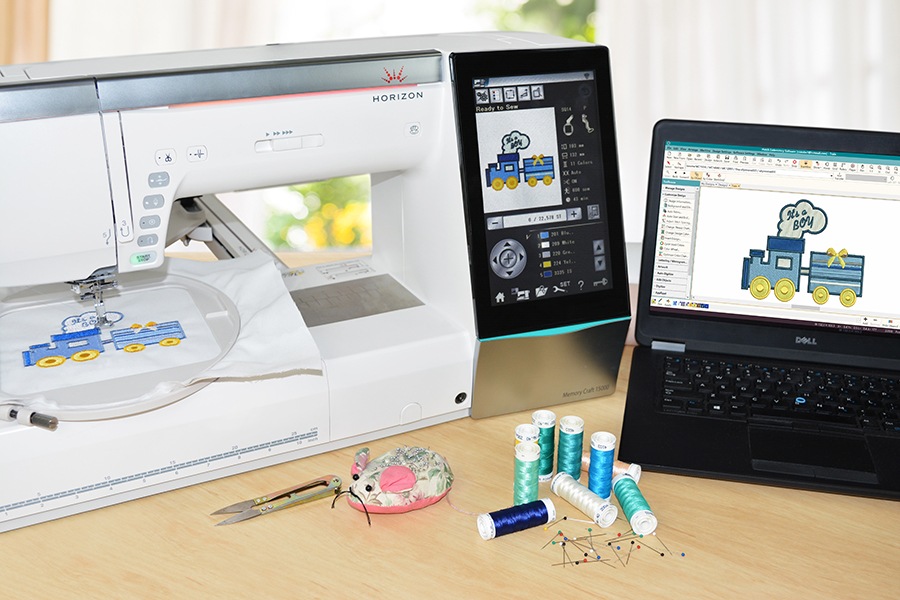
Creating your own machine embroidery designs is a fun way to personalize your projects. It lets you bring unique pictures and ideas to life in thread. You can make embroidery patterns creation simple by using the right embroidery software and tools. This article shows you how to take an idea, convert image to embroidery, and create digital embroidery files ready for your machine.
Creating your own custom embroidery designs gives you full control. You are not limited by what you can buy. You can make anything you want! It opens up a world of creativity for your sewing and crafting.
Why Make Your Own Designs?
Creating your own designs offers many benefits. It saves money over buying pre-made designs for every project. You get truly one-of-a-kind items. Your projects become much more personal.
- Save Money: Buying many designs adds up. Making your own can be free or cost less in the long run.
- Be Unique: Your designs will be special. No one else will have the exact same thing.
- Fit Anything: Make designs that fit your exact fabric size or item shape.
- Bring Ideas to Life: Turn your drawings, photos, or ideas into stitches.
- Learn a New Skill: Designing teaches you about stitches, colors, and planning.
It might seem hard at first. But with good embroidery design tools and some practice, anyone can do it. You will learn about different stitches and how they work. You will also learn how thread color affects the look of your design.
What You Need to Get Started
To create embroidery designs, you need a few key things. You will need a computer. You will need special software for designing. And of course, you will need an embroidery machine to sew the designs.
- Computer: A desktop or laptop computer works best. It needs enough power to run the embroidery software.
- Embroidery Software: This is a special program. It lets you draw, edit, and turn pictures into stitches. We will talk more about this.
- Embroidery Machine: You need a machine that can read digital embroidery files. Most modern machines do this.
- Basic Design Tools: Paper, pencils, or a drawing tablet can help start your idea.
Having these items is your first step. They are your tools for turning ideas into stitch patterns. The software is the most important tool for the design part.
Choosing the Right Software
Picking the right embroidery software is key. There are many options. Some are free. Some cost a lot. They have different features. Think about what you want to do. Are you just starting? Do you want to do complex designs?
Software for creating machine embroidery designs comes in many forms.
- Basic Software: Some machines come with simple software. This might let you change sizes or add letters. It is good for small edits.
- Designing Software: This software lets you draw or import pictures. You can then turn these into stitches. This is where you do embroidery patterns creation.
- Digitizing Software: This is special software. It is used for embroidery digitizing. This is the process of turning art into stitch paths for the machine. Some design software includes digitizing.
- Free Options: Yes, you can find free embroidery design software. These might have fewer features than paid ones. But they are great for beginners.
Think about your budget. Think about how much time you want to spend learning. Read reviews. See what other people use. Some companies offer free trials. Try a few before you decide.
Here are some types of software you might find:
- Drawing Programs: Programs like Inkscape (free) or Adobe Illustrator (paid) let you create art. You might use these first. Then you use embroidery software to add stitches.
- Auto-Digitizing Programs: Some software tries to convert image to embroidery automatically. This can be fast. But the results are not always perfect.
- Manual Digitizing Programs: These give you full control. You tell the software where to put stitches. This takes more time but gives better results. This is manual embroidery digitizing.
- Integrated Software: Some software does everything. You can draw, digitize, and edit all in one program.
Let’s look closer at the difference between auto and manual digitizing.
Grasping Digitizing Methods
Embroidery digitizing is the process of taking artwork and turning it into instructions for an embroidery machine. The machine needs to know where to put each stitch. It needs to know the stitch type, length, and direction.
- Auto-Digitizing: The software looks at your picture. It tries to guess where stitches should go. It uses colors and shapes to figure it out. It is fast and good for simple pictures. But it can make mistakes. It might create too many stitches. It might choose the wrong stitch types. This can make the final design not sew well.
- Manual Digitizing: You are in control here. You trace over your artwork inside the software. You pick the stitch type for each part. You set the stitch direction. You decide the stitch density. This takes more time. But you get high-quality digital embroidery files. The stitches will lay down better. The design will sew better on the machine.
Most professional machine embroidery designs are created using manual embroidery digitizing. For beginners, auto-digitizing can be a starting point. But learning some manual control is very helpful. Many programs offer a mix of both.
Free Embroidery Design Software
Starting with free software is a smart move. It lets you learn the basics without spending money.
Some popular free options include:
- Inkscape (with InkStitch Extension): Inkscape is a free drawing program. InkStitch is a free extension that adds embroidery tools. It lets you draw vectors (clean lines) and then add stitch properties. It supports manual digitizing. It can be a bit technical to set up.
- ** dừng lại vì sợ quá nhiều thông tin kỹ thuật** Let’s rewrite this section for better readability.
Let’s talk about some software you can use. Some software costs money. Some software is free. Free software is a good way to start.
- Programs You Pay For: Companies like Embrilliance, Hatch, Wilcom, and Brother make software you buy. They have many features. They often have good support.
- Free Programs: You can find free software for embroidery design. These programs let you try making designs without paying.
- Inkscape with InkStitch: Inkscape is a free drawing program. You can add InkStitch to it. InkStitch helps you turn your drawings into stitches. It takes some time to learn. But it is powerful and free.
- MySewNet (Free Version): Some companies like Husqvarna Viking/Pfaff offer free versions of their software. These free versions might have limited features. But they let you play with designs.
Think about what your machine uses. Some software works better with certain machine brands. Check what file types your machine reads (like DST, PES, JEF). Make sure the software can save files your machine understands.
Using free embroidery design software is great for learning. Once you know more, you might decide to buy software with more tools.
Steps to Create Embroidery Designs
Now, let’s go over the steps to make your own design. It starts with an idea and ends with a file for your machine. This is the path for embroidery patterns creation.
Step 1: Get Your Idea Ready
What do you want to create? It could be a simple shape, a picture, or words.
- Draw It: Sketch your idea on paper. Keep it simple at first.
- Find a Picture: Use a simple drawing, clip art, or a photo. Make sure you have the right to use the picture.
- Think Simple: For your first designs, choose something easy. Simple shapes and clear lines work best.
Having a clear picture or drawing helps a lot. This is what you will use in your software.
Step 2: Bring Your Idea into Software
Open your embroidery software. Now you will get your idea ready to be stitches.
- Start New: Create a new blank design in your software.
- Draw: Use the drawing tools in the software. Draw your design directly on the screen.
- Import: Bring in a picture file (like JPG, PNG, BMP). The software will show the picture. You will use this picture as a guide. This is how you start to convert image to embroidery.
Once the picture is in the software, you can resize it. Make it the right size for your project.
Step 3: The Digitizing Process
This is the main part of creating digital embroidery files. You tell the software how to make stitches from your design. This is embroidery digitizing.
-
Trace and Stitch: Use the software’s tools to trace over your lines and shapes. As you trace, you pick stitch types.
- Running Stitch: Good for outlines and details. It is a simple line of stitches.
- Satin Stitch: Creates thick, smooth lines. Good for borders, letters, and small shapes. Stitches go back and forth closely.
- Fill Stitch: Covers large areas. Stitches go in rows to fill a space.
-
Pick Stitch Types: For each part of your design, choose the best stitch type. An outline might be a running stitch. A thick letter might be satin stitch. A large heart might be a fill stitch.
- Set Stitch Direction: For satin and fill stitches, the direction matters. It changes how light hits the thread. It changes how the design looks. Draw lines in the software to show the stitch direction.
- Adjust Density: Density is how close the stitches are. Close stitches give solid coverage. Wider stitches are lighter. Software lets you change this.
- Add Underlay: Underlay stitches are hidden stitches sewn first. They help the fabric stay flat. They give stitches on top a good base. Most software adds this automatically.
This process of picking stitches, directions, and density is manual embroidery digitizing if you do it yourself. If the software does it by itself after you import a picture, that’s auto-digitizing. Learning manual steps gives you better control.
Step 4: Choose Colors
Decide which thread colors you will use.
- Color Palette: Your software has a color list. Pick colors that match your idea.
- Order Matters: Think about the order the machine will sew colors. Sew background parts first. Sew parts on top later. Software often helps order colors.
- Reduce Color Jumps: Try to finish one color area before moving to another far away. This reduces thread changes and trims.
Choosing colors is fun! It brings your design to life on the screen.
Step 5: Save the File
Your design is ready! Now save it in the right format for your machine.
- Machine Formats: Different machines use different files. Common ones are PES (Brother, Babylock, Deco), JEF (Janome), DST (Tajima, many others), HUS (Husqvarna), VIP/VP3 (Pfaff/Husqvarna).
- Save As: Use the “Save As” option in your software. Choose the format your machine needs.
- Name Your File: Give it a clear name so you can find it easily.
These digital embroidery files are the instructions for your machine.
Step 6: Get Ready to Sew
Now you move the design file from your computer to your embroidery machine.
- Use a USB: Most machines use a USB stick. Save the file onto the USB.
- Connect Directly: Some machines connect straight to your computer.
- Use Software: Some machine brands have special software to send files.
Put the USB in your machine. Find the design on the machine’s screen.
Step 7: Test the Design
Sewing the design for the first time is a test.
- Use Scrap Fabric: Never sew a new design on your final project first. Use a piece of similar fabric.
- Watch It Sew: See how the stitches look. Check for gaps, pulls, or too many stitches.
- Check Stitch Order: Does the design sew in a good order?
- Make Notes: Write down what you see.
Testing is very important. You will often need to go back to your software to fix things.
Step 8: Edit and Improve
Based on your test sew, make changes in your software.
- Fix Gaps: Add more stitches (increase density) or change stitch direction.
- Remove Stitches: If an area looks too thick, remove some stitches (decrease density).
- Change Stitch Types: Maybe a satin stitch should be a fill stitch, or vice-versa.
- Adjust Order: Reorder color stops or parts of the design.
This back and forth between testing and editing makes your design better. It is part of refining your embroidery patterns creation.
Tips for Beginners
Starting out is exciting! Here are some tips to make it easier.
- Start Simple: Choose simple designs first. Shapes, block letters, and basic outlines are good starts.
- Learn One Stitch Type: Practice with one stitch, like fill stitch for simple shapes. Then add more.
- Use Good Pictures: If you import an image, use a clean, simple picture. Lines should be clear. Colors should be separate. This makes it easier to convert image to embroidery.
- Watch Tutorials: Many software companies and users share videos online. Watching helps a lot.
- Join Groups: Find online groups of people who create embroidery designs. Ask questions. Learn from others.
- Test, Test, Test: Sew your designs on scrap fabric before using your good material.
- Be Patient: Learning takes time. Your first designs might not be perfect. That is okay!
Using good embroidery design tools and taking it step-by-step makes learning fun.
Diving Deeper into Design Tools
Your embroidery software is your main tool. Let’s talk about some common tools you might find and how they help in embroidery patterns creation.
- Selection Tool: Select parts of your design to move, resize, or change.
- Drawing Tools: Pen, pencil, line, circle, box tools to draw shapes.
- Text Tool: Add letters and words easily. Software often has built-in embroidery fonts.
- Stitch Type Tools: Buttons or menus to pick running, satin, fill, etc.
- Reshape/Edit Nodes Tool: Change the shape of lines or areas you have traced.
- Auto-Digitize Tool: A button that tries to convert image to embroidery automatically.
- Manual Digitizing Tools: Tools that let you place stitches point by point or line by line. These are key for manual embroidery digitizing.
- Color Palette: Select and change thread colors.
- Sequencing/Object Manager: See the list of parts in your design. Change the order they will sew.
- Simulate Sewout: Watch a video on screen of how the design will sew. This helps find problems before sewing.
- Measure Tool: Check the size of parts or the whole design.
- Zoom: Look closely at stitches and details.
Getting to know these tools helps you create better machine embroidery designs. Each tool helps you control how the stitches are made.
Advanced Topics: Manual Digitizing and Complexity
Once you are comfortable, you can try more advanced techniques.
- Mastering Manual Digitizing: Spend time learning to trace complex shapes. Control every stitch. This is how professionals make high-quality custom embroidery designs.
- Learn about stitch angles and how they affect look and feel.
- Figure out the best order to sew shapes that overlap.
- Add special stitches like gradients or textures.
- Complex Artwork: Convert image to embroidery for detailed pictures. This requires careful tracing and stitch choices.
- Applique: Design shapes that will be cut fabric pieces sewn onto the main fabric. Your design file tells the machine where to sew the fabric down and then add a border stitch.
- Special Effects: Some software lets you add effects like wavy fills, carved effects, or photo stitch.
- Combining Designs: Take parts from different digital embroidery files and put them together to make a new design.
Manual embroidery digitizing takes practice but gives the best results. It is essential for making truly unique and professional-looking machine embroidery designs.
Troubleshooting Common Issues
You might run into problems when creating or sewing your designs. Here are a few and what might cause them.
- Gaps in Stitches:
- Reason: Stitch density is too low (stitches are too far apart). Fabric is pulling.
- Fix: Increase density in the software. Use stabilizer behind the fabric.
- Too Many Stitches (Design is Hard/Stiff):
- Reason: Density is too high. Too much overlap in design parts.
- Fix: Decrease density. Simplify the design. Check the sew order for unneeded layers.
- Fabric Puckering:
- Reason: Design is too dense. Not enough stabilizer. Fabric is too thin.
- Fix: Reduce density. Use stronger or more stabilizer. Check your fabric choice.
- Stitches Don’t Line Up:
- Reason: Fabric shifting during sewing. Design has pull or push issues not fixed during digitizing.
- Fix: Use proper hooping and stabilization. Check design for pull/push settings (advanced software feature). Manual embroidery digitizing helps control this.
- Design Looks Bad After Auto-Digitizing:
- Reason: Auto-digitizing is not perfect. Artwork was not clean enough.
- Fix: Edit the design manually using the software tools. Clean up the original image. Or trace it manually.
Learning to fix these issues helps you improve your embroidery patterns creation skills. It makes your custom embroidery designs sew better.
Table: Comparing Software Types (Simple View)
Here is a quick look at different kinds of embroidery design tools.
| Software Type | What it Does | Best For | Ease of Use | Typical Cost |
|---|---|---|---|---|
| Basic Machine Software | Resize, add letters, simple edits | Quick changes, adding text | Easy | Often Included |
| Auto-Digitizing Software | Tries to convert picture to stitches by itself | Simple pictures, quick results | Easy to start | Medium to High |
| Manual Digitizing Software | You control every stitch path and setting | Complex designs, high quality | Harder to learn | High |
| Free Design Software | Drawing, tracing, adding stitches (like InkStitch) | Learning digitizing, simple designs | Medium to Hard | Free |
This table helps you see the general differences. The best software for you depends on your goals and how much time you want to learn.
FAQ Section
People often ask questions about creating embroidery designs. Here are some common ones.
Q: Can I really make designs myself without being an artist?
A: Yes! You do not need to be a great artist. You can start with simple shapes or use existing simple pictures. The software helps you turn lines and areas into stitches. Basic drawing skills or the ability to trace are enough to start.
Q: Is free embroidery design software good enough?
A: Free software is excellent for learning. Programs like Inkscape with InkStitch let you do manual digitizing. They can create high-quality digital embroidery files. They might not have all the fancy tools of expensive software. But they are great for beginners and even some advanced users.
Q: How long does it take to create a design?
A: It depends on the design’s size and complexity. A simple design might take 30 minutes to an hour. A complex design with many details could take many hours. Manual embroidery digitizing takes longer than auto-digitizing but gives better results.
Q: What is the most important thing to learn in embroidery digitizing?
A: Learning about stitch types (fill, satin, running) and when to use them is very important. Also, learning about stitch direction and density helps your designs look and sew well. Practice makes perfect!
Q: Can I convert any image to embroidery?
A: You can try to convert image to embroidery for almost any picture. However, simple, clean images work best. Pictures with lots of tiny details, blurry lines, or many similar colors are hard to digitize well. You might need to simplify the image first.
Q: What file types do I need for machine embroidery designs?
A: Common file types include PES, JEF, DST, HUS, VP3. Check your embroidery machine’s manual. It will list the types of digital embroidery files it can read. Make sure your embroidery software can save files in that format.
Q: Do I need special hardware besides my computer?
A: Not usually. Your computer and the software are the main tools for designing. Some people like using a drawing tablet instead of a mouse for tracing, but it is not required.
Conclusion
Creating your own machine embroidery designs is a rewarding hobby. It lets you make truly unique items. You can save money and expand your creativity. By choosing the right embroidery software and learning the steps for embroidery patterns creation and embroidery digitizing, you can turn your ideas into stitches. Start simple, practice, and use the embroidery design tools available. Whether you use free embroidery design software or a paid program, the process of making custom embroidery designs yourself is within your reach. Get ready to convert image to embroidery and sew something special!