
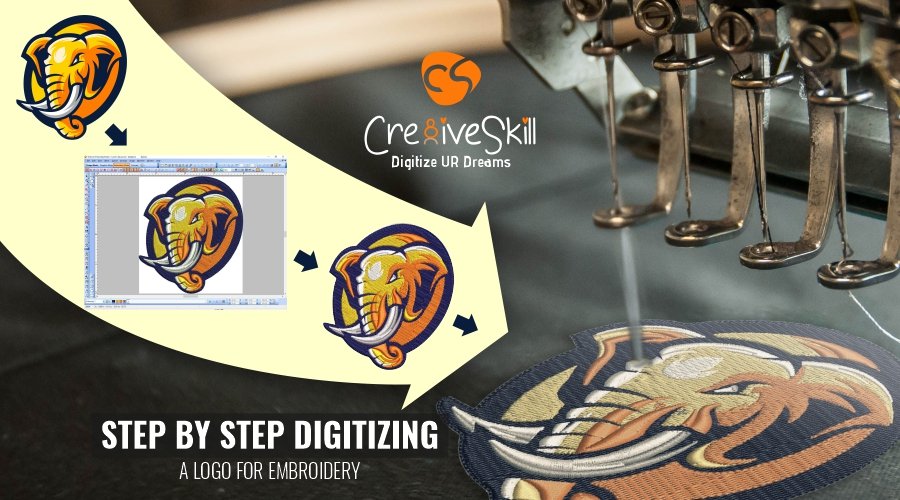
Image Source: www.cre8iveskill.com
How To Digitize A Picture For Embroidery: Step-by-Step
Do you want to turn your favorite photo into a stitched piece of art? Can you use any picture for this? Yes, you can! Digitizing a picture for embroidery means changing an image into a special file. This file tells an embroidery machine where to put each stitch. It helps you make custom items, patches, and beautiful stitched designs. This guide will show you how to do this simple, step-by-step process.
Grasping the Basics of Picture Digitizing
Digitizing is the first step to making a picture an embroidery design. You need special software for this. This software lets you tell your embroidery machine where to place stitches. It turns your picture into a stitch pattern. It’s like drawing with stitches.
What is Embroidery Digitizing?
Embroidery digitizing is the process of changing a picture or design into a digital file. This file then guides an embroidery machine. It tells the machine:
* Where to make stitches.
* What type of stitches to use.
* Which colors to use.
* When to cut the thread.
This special file is not like a normal picture file (like JPG or PNG). It is a special set of instructions for your embroidery machine.
Why Turn Your Pictures into Stitches?
Turning a picture into an embroidery design lets you make many cool things.
* Personal gifts: Stitch a family photo onto a blanket.
* Custom clothes: Add your favorite pet’s face to a shirt.
* Unique home decor: Make a stitched portrait for your wall.
* Brand items: Use your company logo on hats or jackets. This is great for custom embroidery file creation.
* Patches: Make patches for jackets or bags. This answers “How to digitize photos for patches.”
It gives you full control over your designs. You can make anything you dream up.
What You Need to Begin Your Digitizing Journey
Before you start, gather your tools. Having the right things ready makes the process smooth.
Essential Tools for Digitizing
- A Computer: Any modern computer will work.
- Embroidery Digitizing Software: This is the most important tool. It’s where you will do all your work.
- A Good Picture: The better your starting picture, the better your final stitched design will be.
- An Embroidery Machine: You need this to stitch out your design after you digitize it.
- Embroidery Hoops: These hold your fabric tight on the machine.
- Embroidery Thread: Pick colors that match your picture.
- Fabric: Choose the right fabric for your project.
Choosing the Best Picture for Embroidery
Not all pictures are good for digitizing. Some pictures work better than others. Picking the right one is very important for a good final product.
Tips for Picking Your Picture
- High Quality is Key: Use a picture that is clear and sharp. Blurry pictures will look bad when stitched.
- Simple is Often Better: Pictures with fewer colors and clear lines work best. Complex photos can be hard to make into stitches.
- Good Contrast: The parts of your picture should stand out from each other. Dark parts should be very dark. Light parts should be very light. This helps the software see the edges.
- Right Size: A bigger picture often means more detail. But, too big can be slow to work with. Find a balance.
- Think About Colors: Too many colors can make your design look messy. It also takes more time to stitch. Try to use a picture with fewer main colors.
For example, a cartoon character with bold lines and flat colors is easier to digitize than a detailed photograph of a forest.
Selecting Your Embroidery Digitizing Software
This is where the magic happens! Your choice of embroidery digitizing software is very important. This software lets you convert image to embroidery file.
Types of Software
- Free Software: Some basic programs are free. They are good for learning but may not have many features.
- Paid Software: These programs offer many tools. They give you full control over your design. They can be costly, but they are worth it if you plan to digitize often.
- Online Tools: Some websites offer quick conversion. They often use auto digitize image for embroidery features. They are fast but give less control.
Features to Look For in Software
When you pick software, think about these things:
- Ease of Use: Is it easy to learn and use?
- Stitch Types: Does it have many stitch options (fill, satin, running)?
- Editing Tools: Can you change colors, resize, and move parts of your design?
- Automatic Features: Does it offer auto digitize image for embroidery? How well does it work?
- Manual Digitizing: Can you draw stitches by hand? This is important for high quality.
- Export Formats: Can it save files that your embroidery machine uses (PES, DST, JEF, etc.)? These are the best embroidery file formats.
- Support: Does the company offer help if you get stuck?
Popular Embroidery Digitizing Software Choices
| Software Name | Type | Key Features | Good For |
|---|---|---|---|
| Embrilliance StitchArtist | Paid | Easy to use, great for beginners and pros, many stitch types. | All levels, simple designs to complex ones. |
| Hatch Embroidery | Paid | Full-featured, good auto-digitizing, excellent manual tools. | Serious digitizers, photo embroidery design. |
| Wilcom Embroidery Studio | Paid | Industry standard, very powerful, complex features. | Professionals, large businesses. |
| Inkscape + Ink/Stitch | Free | Vector graphic editor with embroidery plugin, steep learning curve. | Hobbyists, those on a budget, vector work. |
| Brother PE-Design | Paid | Specific for Brother machines, good auto-digitizing, user-friendly. | Brother machine owners, home users. |
Most paid software offers a free trial. Try a few to see which one feels best for you.
Your Step-by-Step Embroidery Digitizing Tutorial
Now, let’s get into the actual steps. This is where you learn to convert image to embroidery file.
Step 1: Prepare Your Picture for Digitizing
Before you even open the digitizing software, clean up your picture.
a. Clean Up Your Image
- Remove Noise: Get rid of any small dots or lines that are not part of your main design.
- Sharpen Edges: Make the lines and edges of your picture clear and crisp. Use a photo editor for this.
- Fix Colors: Make colors vibrant and separate. If two colors are too close, the software might see them as one.
b. Crop Your Picture
- Cut out any parts of the picture you do not want to stitch. Focus only on the main subject.
c. Resize Your Picture
- Resize the image to roughly the size you want the final stitch design to be. This helps the software work better. You can do this in a simple photo editor.
d. Reduce Colors (Optional but Recommended for Photo Embroidery Design)
- Many photos have millions of colors. Embroidery machines use far fewer. Use your photo editor to reduce the number of colors in your image. Try to get it down to 10-20 main colors. This makes the digitizing easier and the final design cleaner. This is especially true when making a photo embroidery design.
Step 2: Bring Your Picture into the Software
Open your chosen embroidery digitizing software.
* Go to “File” or “Open.”
* Select your prepared picture file (JPG, PNG, BMP).
* The picture will appear on your screen. This is your guide.
Step 3: Choose Your Digitizing Method
You have two main ways to convert image to embroidery file: manual or automatic.
a. Manual Digitizing (Recommended for Quality)
- You draw all the stitches by hand.
- You tell the software exactly where to place each stitch.
- This takes more time but gives the best results. It’s key for custom embroidery file creation.
- It’s best for designs needing high detail or special effects.
b. Auto-Digitizing (Quick, but Needs Fixing)
- The software tries to turn your picture into stitches on its own.
- You click a button, and the program does the work.
- It’s fast, but the results are often not perfect.
- You will almost always need to fix problems after auto-digitizing. This feature is often called “auto digitize image for embroidery.”
For beginners, start with simple images using auto-digitizing to learn. Then move to manual for better control.
Step 4: Drawing Your Design (Manual Digitizing Steps)
If you are going the manual route (which gives the best results for a picture to stitch pattern):
a. Trace Outlines First
- Use a “run stitch” or “satin stitch” tool.
- Carefully draw lines around the main shapes in your picture. Think of it like coloring a picture – you draw the lines first.
- Focus on clear, distinct shapes.
b. Fill in Colors with Stitches
- After outlining, use “fill stitch” tools.
- Click inside the shapes you just outlined. The software will fill these areas with stitches.
- Pick the right color thread for each area.
c. Use Different Stitch Types Wisely
- Fill Stitch: Best for large areas of color. It creates a flat, solid look.
- Satin Stitch: Best for outlines, letters, and narrow shapes. It creates a raised, shiny look. Use it for borders or small details.
- Run Stitch: Simple line stitches. Good for fine details, veins, or small outlines that do not need to be bold.
d. Add Details and Layers
- Start with the largest color areas. Then add smaller details on top.
- Think about the order of colors. Stitch backgrounds first, then main parts, then small details. This makes the design neat.
- Add highlights and shadows using different shades of thread or by changing stitch direction.
Step 5: Using Auto-Digitizing Features
If you picked auto-digitizing:
a. Click to Convert
- Find the “auto-digitize” or “convert to embroidery” button in your software.
- Click it. The software will quickly make a design.
b. Clean Up the Stitches
- Auto-digitizing often creates too many stitches or stitches in the wrong places.
- Delete Extra Stitches: Remove small, floating stitches that don’t belong.
- Combine Shapes: If auto-digitizing made many tiny pieces, try to combine them into bigger, smoother shapes.
- Smooth Lines: Use editing tools to make jagged lines smooth.
c. Adjust Colors
- Auto-digitizing might pick weird colors. Change them to match your original picture better.
- Reduce the total number of colors if there are too many.
Step 6: Setting Stitch Types and Densities
This step is very important for how your design will look and stitch out. This is where you vectorize for embroidery machine settings.
a. Stitch Density
- What it is: How close together the stitches are.
- Too Dense: Can make the fabric stiff. Can break needles.
- Not Dense Enough: Can leave gaps, showing the fabric underneath.
- Rule of Thumb: Most fill stitches are good at a density of 4.0 to 5.0 (this number changes by software, but aims for about 0.4mm to 0.5mm between stitches). Satin stitches are often denser.
b. Stitch Direction
- Importance: Stitch direction affects how light hits the thread. It makes your design look more alive.
- How to Set: Use tools in your software to change the angle of the stitches.
- Example: For a face, stitches might go with the curve of the cheek. For hair, they might follow the flow of the hair.
c. Push and Pull Compensation
- What it is: Fabric stretches when stitched. This can make shapes pull in or push out.
- How it Helps: Your software can add or subtract a tiny bit from shapes to make them end up the right size.
- Settings: Small amounts (0.1mm to 0.3mm) are usually enough. Experiment with different fabrics.
Step 7: Check and Fix Your Design
This is a critical step. Do not skip it!
a. Zoom In Very Close
- Look at every part of your design.
- Check for tiny gaps between colors.
- Look for stitches that overlap too much.
b. Remove Unwanted Stitches
- Delete stray stitches.
- Remove long “jump stitches” that connect two far-apart parts of the design. The machine will cut these, but fewer is better.
c. Reorder Colors and Stitching Sequence
- Think about how the machine will stitch.
- Stitch background colors first.
- Then stitch the main parts of your design.
- Finally, stitch any outlines or very small details on top.
- This makes your design look clean and avoids color overlaps.
d. Test Stitch (If Possible)
- The best way to check is to stitch it out on a scrap piece of fabric.
- See how it looks. Are there gaps? Is it pulling? Are colors in the right place?
- Go back to the software and make changes. Then test again. This process is key for a great photo embroidery design.
Step 8: Save Your Design for Your Machine
Your design is ready! Now you need to save it in the right format.
a. Best Embroidery File Formats
- Every embroidery machine brand uses specific file types.
- DST: (Tajima) Very common, works on many machines.
- PES: (Brother, Babylock, Bernina) Popular for home machines.
- JEF: (Janome) Used by Janome machines.
- EXP: (Melco) Another common industrial format.
- HUS: (Husqvarna, Viking) For those machines.
- VP3: (Husqvarna Viking, Pfaff) Newer format.
Your software should let you save in many of these formats. Always check your machine’s manual to know which file format it needs. This is how you vectorize for embroidery machine use.
b. Saving Your Work
- Go to “File” > “Save As.”
- Choose the correct format for your machine.
- Give your file a clear name.
- Save it to a USB drive or directly to your machine if it’s connected.
You have now successfully digitized a picture for embroidery!
Specific Tips for Photo Embroidery Design
Turning a real photo into stitches can be tricky. Here are some extra tips for photo embroidery design.
1. Simplify, Simplify, Simplify
- Photos have millions of color shades. You cannot stitch all of them.
- Focus on the main shapes and the most important color differences.
- Try reducing your photo to 5-10 main colors before you start digitizing. This makes the picture to stitch pattern process much easier.
2. Think About Light and Shadow
- Instead of precise colors, think about darks and lights.
- Use denser stitches for shadows. Use lighter density or even no stitches for highlights.
- This creates depth and makes the photo look more like a picture and less like a flat design.
3. Use Halftone or Stipple Effects
- Some advanced software can create “halftone” effects. This is like a newspaper photo, using dots to make shades.
- “Stipple” or “meander” stitches can also add texture and depth to larger areas, especially for backgrounds.
4. Size Matters for Photos
- Smaller photo designs often look like a blob.
- Photos usually need to be at least 4×4 inches (10×10 cm) to show good detail. Larger is often better for more detail.
How to Digitize Photos for Patches
Digitizing for patches has a few special considerations.
- Strong Outline: Always add a clear, thick border around the entire patch design. A satin stitch is best for this. It needs to be very dense to cover the edge of the patch fabric.
- Stable Backing: When you stitch out a patch, use a strong stabilizer. This helps the patch hold its shape.
- No Loose Ends: Make sure all stitches are tied off or trimmed very close. You don’t want threads coming undone on the edge of a patch.
- Stitch Order: Stitch the main design first. Then, stitch the final border. This helps to secure the edges of the patch.
- Sizing: Patches are often small, so simplify your photo much more than for a larger design. Less detail, more focus on strong shapes and colors.
Common Mistakes to Avoid
Even with a detailed embroidery digitizing tutorial, mistakes happen. Knowing what to watch for can save you time and thread.
- Using a Bad Quality Picture: A blurry or low-resolution image will always lead to a bad stitched design. Start with the best image you can find.
- Too Many Colors: Trying to use every color in a photo makes a messy design. Reduce colors!
- Wrong Stitch Density: Too dense makes the fabric pull and can break needles. Too loose leaves gaps. Always test stitch if you can.
- Not Testing the Design: Always stitch a test sample on similar fabric before putting it on your final item. This is the only way to know if your design will look good.
- Ignoring Fabric Type: Different fabrics need different stitch densities and backing. A design for denim might be too dense for a thin T-shirt.
- Trying to Stitch Too Small: Some details are just too tiny for stitches. Know the limits of your machine and thread.
- Not Saving Often: Save your work every few minutes. Software can crash!
Frequently Asked Questions (FAQ)
How long does it take to digitize a picture for embroidery?
It depends on the picture and your skill. A simple design might take 15 minutes to an hour. A complex photo embroidery design could take many hours, even days, for a professional.
Can I use any photo, or are some better than others?
Some photos are much better. Photos with clear lines, good contrast, and fewer main colors work best. Complex photos with lots of detail or blurry parts are very hard to digitize well.
Is free embroidery digitizing software good enough for beginners?
Free software like Inkscape with the Ink/Stitch plugin can be a good starting point. They let you learn the basics. But, for more advanced features, better auto-digitizing, and easier control, paid software is usually worth it.
What is the hardest part of digitizing a picture?
For most people, the hardest part is getting the stitch types and densities right. Knowing how stitches will look on fabric is a skill learned with practice. It also includes simplifying a complex image without losing its main feel.
Do I need to be an artist to digitize pictures?
No, you do not need to be an artist. But, having an “eye” for design and understanding basic shapes and colors helps a lot. The software does much of the technical work. Your job is to guide it.
What are the best embroidery file formats to save in?
The best format is the one your specific embroidery machine uses. Common formats are DST, PES, JEF, and HUS. Always check your machine’s manual.
Can I auto digitize image for embroidery and get perfect results?
Auto digitize image for embroidery tools are getting better. But, they rarely give perfect results. You will almost always need to clean up and adjust the design by hand afterward. Manual digitizing gives the best quality for complex designs.
Digitizing pictures for embroidery opens up a world of creativity. With the right tools and practice, you can turn any image into a beautiful, stitched masterpiece. Start simple, be patient, and enjoy the process of bringing your photos to life with thread!