
Digitizing images for embroidery means turning a picture, drawing, or design into a special file your embroidery machine can read and sew. It’s like giving your machine a step-by-step map of where to put each stitch. This guide will walk you through this fun and creative process so you can turn your favorite images into stitches!
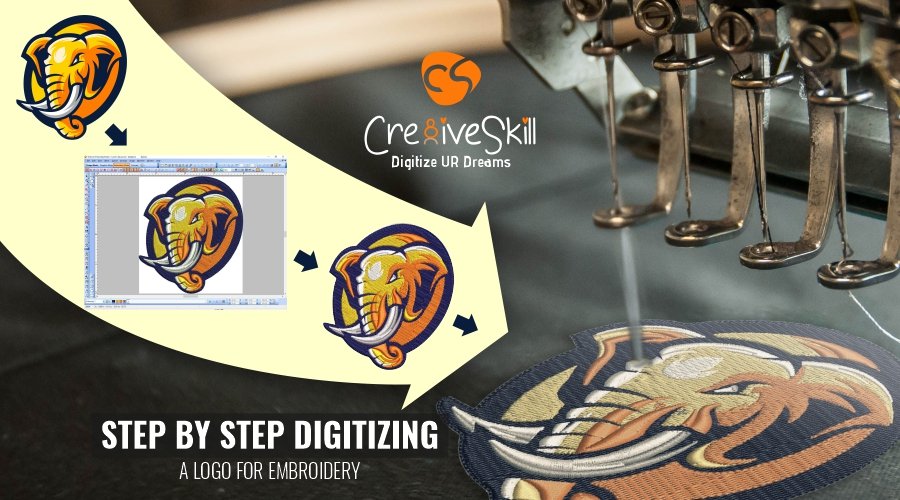
Image Source: www.cre8iveskill.com
Grasping Embroidery Digitizing
What is digitizing for embroidery? It’s the process of taking an image and converting it into a digital file made of stitches. Why do we do this? Because embroidery machines cannot sew directly from standard image files like JPEGs or PNGs. They need specific instructions that tell them where to start and stop sewing, what type of stitch to use, the direction of the stitches, and the thread colors.
Think of an image as a painting and a digitized file as a sewing pattern. A painter uses brushes and colors freely. A seamstress needs a pattern with lines and notes to cut fabric and sew precisely. Digitizing creates that precise sewing pattern for your machine. This is how you convert image to embroidery, turning a picture into a stitch design.
This skill is key to making custom embroidery design projects come to life. Whether it’s a company logo, a piece of art, or a photo, digitizing makes it possible to sew it.
Why Digitizing Matters
Your embroidery machine is smart, but it needs a clear plan. It doesn’t “see” an image the way your eyes do. It follows commands from a digital file. This file contains code for each stitch.
The quality of your finished embroidery depends a lot on the quality of the digitizing. A poorly digitized design can look messy, have gaps, or distort the fabric. A well-digitized design sews smoothly and looks crisp and professional.
Learning to digitize gives you full control over your projects. You can create unique designs that no one else has. You can also fix designs that don’t sew well.
The Essential Tools
To start digitizing, you need a few things.
Embroidery Digitizing Software
This is the most important tool. Embroidery digitizing software is a special computer program. It lets you open images and add stitches, thread colors, and other sewing details. There are many software options available, from simple ones for beginners to advanced ones for professionals. Some popular names include Hatch, Wilcom, Embird, Brother PE-Design, and Bernina Embroidery Software. Each software has its own way of working, but they all do the same main job: turning images into stitches.
A Computer
You need a computer to run the digitizing software. The computer should be fast enough and have enough memory to handle the software and image files.
Your Image
You need the image you want to digitize. This could be a drawing you scanned, a logo file, or a picture you took.
Deciphering Embroidery Machine File Formats
Once your image is digitized, it needs to be saved in a file format your specific embroidery machine can understand. There isn’t one universal format. Different machine brands use different types of files. These are called embroidery machine file formats.
Here are some common ones:
- DST: Widely used, especially on industrial machines. Contains stitch data but often no color information.
- PES: Used by Brother, Babylock, and Deco machines.
- JEF: Used by Janome machines.
- VP3 / VIP: Used by Husqvarna Viking and Pfaff machines.
- EXP: Used by Bernina and Melco machines.
- HUS: Used by older Husqvarna Viking machines.
- PCS: Used by Pfaff machines.
- XXX: Used by Singer machines.
It’s very important to know which format your machine uses. Your software must be able to save files in that format.
The Steps to Digitize an Image
Here is a general step-by-step guide on how to convert image to embroidery. The exact steps might vary slightly depending on your software, but the main ideas are the same.
Step 1: Prepare Your Image
The quality of your image matters a lot. A clear, simple image is much easier to digitize than a blurry or complex one.
- Choose a Good Image: Pick an image that is not too small and has clear lines and shapes. High resolution is best.
- Clean Up the Image: Remove any unwanted backgrounds or noise from the image using photo editing software like Photoshop or GIMP.
- Simplify the Design: Sometimes, details that look good in a picture don’t translate well to stitches, especially small text or fine lines. You might need to simplify the design.
- Check Colors: Look at the colors. Can they be easily matched with embroidery thread colors? Too many colors or subtle color changes can be hard to replicate in stitches.
Step 2: Choose Your Embroidery Digitizing Software
If you haven’t already, decide which software you will use. Consider your budget, your skill level, and the features you need. Many offer free trials.
Step 3: Import Your Image into the Software
Open your embroidery digitizing software. Find the option to “Import Image,” “Load Background,” or similar. Select your prepared image file (like a JPG, PNG, or TIFF). The image will appear in the software workspace. This workspace often shows a hoop outline.
Step 4: Set Design Size and Placement
Before adding stitches, set the final size of your embroidery design. Think about where it will be sewn (a shirt, a hat, a bag). This helps you choose the right size and ensure the details will look good at that size. You also need to know the size of your machine’s hoop. The design must fit inside the hoop.
You might also place the image in the center of the hoop or adjust its position on the workspace.
Step 5: Tracing or Drawing Your Design (Manual vs. Auto)
This is where the magic happens – adding stitches. There are two main ways to do this: manual embroidery digitizing and auto digitize embroidery.
Auto Digitize Embroidery: Some software has an “auto-digitize” feature. You select the image, click a button, and the software tries to automatically turn it into stitches.
- Pros: Fast and easy, especially for simple designs. Good for beginners to see how stitches are placed.
- Cons: Rarely produces high-quality results, especially for complex images or logos. Often uses too many stitches, ignores details, and doesn’t handle overlaps well. Can create messy stitch paths. Not recommended for professional or detailed work.
Manual Embroidery Digitizing: This is where you use the tools in the software to manually draw the shapes and tell the software what stitches to put where. You trace over your image or draw the design elements from scratch.
- Pros: Gives you complete control over every stitch. Allows for high-quality, efficient, and detailed designs. Essential for complex logos, text, and custom artwork.
- Cons: Takes time and practice to learn and do. Requires understanding stitch types and digitizing principles.
For best results, especially for custom embroidery design, manual digitizing is highly recommended. You will use tools like:
- Run Stitch Tool: For outlines or fine details.
- Satin Stitch Tool: For narrow columns, borders, or text. Gives a raised, shiny look.
- Fill Stitch Tool: For filling larger areas. Stitches go back and forth to cover the space.
You will click points around shapes to create outlines and areas, then assign stitch types to these areas.
Step 6: Selecting Stitch Types
Choosing the right embroidery stitch types is crucial for the look and sewability of your design.
- Run Stitch: A simple line of stitches. Used for outlines, small details, or underlay stitches (stitches sewn first to prepare the fabric). Also called a walk stitch.
- Satin Stitch: Densely packed stitches that go back and forth across a narrow shape. Creates a smooth, raised column. Perfect for outlines, text, and narrow shapes like flower stems.
- Fill Stitch: Stitches that fill a larger area by sewing back and forth. Used for backgrounds or large shapes. You can control the angle and pattern of the stitches.
Your software will have tools for these and sometimes more complex stitch types. You will select an area you drew and assign a stitch type to it.
Step 7: Assigning Embroidery Thread Colors
In your software, you will assign specific embroidery thread colors to each part of your design. You’ll have a color palette in the software. You select a part of the design and pick a color.
The software uses color numbers or names that often match real thread brands (like Madeira, Sulky, Isacord). When you sew the design, your machine will stop and tell you which color thread to load for each section.
Think carefully about color order. Sewing certain colors first can help build the design or prevent colors from showing through layers.
Step 8: Adding Details and Effects
This step involves refining your design.
- Adding Underlay: Stitch types like fill and satin stitches often need underlay. These are stitches sewn first in the same area. They help stabilize the fabric, give the top stitches something to grip, and add body. Your software can often add underlay automatically, but you can control it manually too.
- Setting Stitch Direction: For fill stitches, the direction the stitches go can affect the look and how well it covers. You can set the stitch angle. For satin stitches, the angle of the column is key.
- Adding Pull Compensation: Embroidery stitches pull the fabric slightly. This can cause gaps or distortion, especially on knit fabrics. Pull compensation adds extra width to shapes (like satin stitches) to counter this pull. Your software usually has settings for this.
- Setting Stitch Density: Density refers to how close together the stitches are. High density means more stitches per area, making it solid and heavy. Lower density means fewer stitches, making it lighter and sometimes used for special effects or digitizing photos for embroidery. Too high density can make the design too stiff or cause needles to break. Too low can show fabric through the stitches.
Step 9: Checking the Stitch Order
The order in which the parts of your design sew is important. You want to sew background elements before foreground elements. You also want to minimize color changes. Most software lets you reorder elements easily. A good stitch order saves time when sewing and makes the finished design look cleaner.
Step 10: Reviewing and Editing
Look at your design in the software. Most programs have a stitch simulator that shows you how the design will sew out stitch by stitch. This helps you spot potential problems like overlaps, gaps, or bad stitch directions before you sew. Make any necessary edits.
Step 11: Saving in the Right Format
Once you are happy with your digitized design, save it. Go to “File” > “Save As” or “Export.” Choose the correct embroidery machine file formats for your machine (like PES, DST, JEF, etc.). Give your file a clear name.
Step 12: Test Sew
Before sewing your design on your final item, always do a test sew on a scrap piece of the same or similar fabric. This lets you check the stitch quality, color order, and size. You can then go back to your software and make changes if needed.
Raster vs. Vector Images for Digitizing
When you prepare your image, you might encounter two types: raster and vector.
- Raster Images: Made of tiny dots (pixels) like photos or scanned drawings. JPEGs, PNGs, and GIFs are common raster formats. When you enlarge a raster image, it can become blurry and pixelated. This makes it harder to digitize accurately, especially for fine lines or shapes.
- Vector Images: Made of mathematical paths and lines. They are scalable, meaning you can make them any size without losing quality. AI, EPS, and SVG are common vector formats. Vector images are much easier to digitize because the software can often use the existing lines and shapes to create stitches accurately.
If you start with a raster image, you might consider using software or tools for raster to vector conversion before digitizing. This process turns the pixel-based image into a scalable vector image. While not always perfect, a good conversion can save a lot of time and effort during digitizing. Some digitizing software has built-in vector tools or can import vector files directly.
Digitizing Photos for Embroidery
Turning a photo into embroidery (digitizing photos for embroidery) is one of the more complex types of digitizing. You’re not just outlining shapes; you’re trying to recreate shades and details using stitches.
- Complexity: Photos have many colors and subtle gradients. Trying to recreate these exactly with thread is very difficult.
- Techniques: Digitizing photos often uses techniques like:
- Stippling: Randomly placed stitches that create texture and shading.
- Color Blending: Using different colors of thread and different stitch angles or densities to create the illusion of blending or shading.
- Lower Density Fills: Using fills with less density to allow the fabric color to show through or to build up layers of color for shading.
- Limited Color Palette: Simplifying the photo’s colors into a limited set that can be used with thread.
Software often has special tools for photo digitizing, sometimes called “photo stitch” or “stipple fill.” These tools help automate some parts of the process, but manual adjustment is usually needed for best results. Digitizing photos well takes skill and practice.
Manual Digitizing vs. Auto-Digitizing: A Closer Look
Let’s talk more about auto digitize embroidery compared to manual embroidery digitizing.
Auto Digitize Embroidery:
- How it Works: The software analyzes the pixels in the image, identifies areas of similar color, and tries to automatically apply stitch types (usually fill or satin) to those areas.
- Best For: Very simple, graphic images with clear, distinct color blocks (like a simple cartoon). Can be a starting point for beginners to see how stitch areas are created, but almost always needs manual editing.
- Limitations:
- Doesn’t understand depth or overlap.
- Creates inefficient stitch paths (too many jumps or trims).
- Can misinterpret details, turning small elements into messy stitches or ignoring them completely.
- Often applies too much stitch density.
- Doesn’t handle text or fine lines well.
- Rarely produces professional-quality custom embroidery design.
Manual Embroidery Digitizing:
- How it Works: The digitizer (you) uses tools to draw the outlines and shapes that will become stitches. You decide which stitch type to use for each shape, the stitch direction, density, underlay, and stitch order.
- Best For: Any design where quality, efficiency, and control are important. Logos, text, detailed artwork, appliqué designs, and custom embroidery design.
- Benefits:
- Precise control over stitch placement and direction.
- Ability to optimize stitch paths and reduce trims.
- Correct application of underlay and pull compensation.
- Creating designs that sew out smoothly and look great.
- Can handle complex details and text effectively.
While auto-digitizing is tempting because it’s fast, manual digitizing gives you the power to create truly high-quality designs. Most serious embroiderers rely on manual digitizing skills.
Helpful Tips for Digitizing Well
- Start Simple: Begin with easy designs – clear shapes, few colors.
- Practice Regularly: The more you digitize, the better you become.
- Learn Your Software: Spend time exploring all the tools and features in your embroidery digitizing software. Watch tutorials.
- Use Layers: Think of your design in layers, like sewing background elements first, then foreground.
- Minimize Jumps and Trims: Try to plan your stitch path so the machine has to cut the thread (trim) as little as possible. This makes the design sew faster and look cleaner.
- Consider the Fabric: Different fabrics need different digitizing settings (density, underlay, pull compensation). A design digitized for a stable fabric like canvas might not sew well on a stretchy knit.
- Save Often: Save your work frequently while you are digitizing!
- Keep Test Sews: Save your test sew results. Write notes on what worked and what didn’t. This helps you learn.
- Study Good Designs: Look at professionally digitized designs (if you can access them in your software) to see how they are constructed.
Addressing Common Issues
Even with practice, you might run into problems.
- Gaps in the Design: This can happen if pull compensation isn’t enough, stitch density is too low, or the design isn’t digitized to account for fabric stretch. Add more pull compensation or adjust density.
- Design is Too Stiff: Stitch density is too high, or there’s too much underlay. Reduce density.
- Needle Breaks: Design density might be too high, causing too many stitches in one spot. Or the design might be too small for the stitch type used. Increase spacing or use a different stitch type.
- Fabric Puckering: Too many stitches for the fabric, or lack of proper stabilization. Check stitch density and make sure you’re using suitable stabilizer for your fabric.
- Design Distortion: Often due to fabric pull, especially on stretchy materials, or incorrect digitizing angles. Adjust pull compensation and stitch direction.
Solving these issues often involves going back into your embroidery digitizing software and making adjustments.
The Journey of Learning
Becoming a good digitizer is a journey. It takes time to understand how different stitch types behave, how fabric reacts, and how to translate a visual image into a sewing plan. Don’t get discouraged if your first designs aren’t perfect. Every design you create and sew helps you learn more about how to convert image to embroidery effectively. Experiment with different settings and techniques. Join online communities or forums dedicated to your software – they are great places to ask questions and see how others digitize.
Creating custom embroidery design gives you incredible freedom. With the knowledge of digitizing, you can personalize items with unique artwork and turn your creative ideas into beautiful stitches.
Frequently Asked Questions (FAQ)
Q1: Do I have to buy expensive software to digitize?
No, you don’t always need the most expensive software, especially when starting. There are different levels of embroidery digitizing software. Some more affordable options or even free trials can help you start learning manual embroidery digitizing basics. However, very cheap or free software often has limited manual tools and might focus only on auto digitize embroidery, which isn’t ideal for quality.
Q2: Can auto digitize embroidery really not be used for anything?
Auto digitize can be okay for very simple, non-critical designs with solid shapes and clear outlines, like a basic letter or shape for a casual project. But even then, checking and cleaning up the result in your software is wise. For anything with detail, text, or commercial intent (custom embroidery design), manual digitizing is necessary for a good result.
Q3: How do I know which embroidery machine file formats my machine uses?
Check your embroidery machine’s manual. It will list the file types it can read from a USB stick or other media. You can also look up your machine model online. Common formats include PES, DST, JEF, VP3, EXP, etc.
Q4: How do I choose the right embroidery thread colors?
Start by looking at your original image. Most digitizing software includes standard thread color charts (like Isacord, Madeira, Sulky). You can select colors from these charts that are close matches to your image colors. Some photos might require you to simplify the color scheme to fit the limited number of thread colors available or manageable in a design.
Q5: What’s the difference between digitizing and converting file formats?
Digitizing is the process of creating the stitch file from an image. It involves choosing stitch types, density, angles, etc. Converting file formats is simply changing an existing embroidery stitch file (like a DST) into a different embroidery stitch file format (like a PES) without changing the stitches themselves. You need a digitizing program to digitize, but often simpler converter programs can change formats.
Q6: Is digitizing photos for embroidery hard?
Yes, digitizing photos is generally considered one of the more advanced types of digitizing. It’s challenging because you are trying to represent subtle shading and detail using stitches and a limited number of thread colors. It requires a good understanding of stitch types, density, and color blending techniques.
Q7: What is raster to vector conversion and why would I do it for embroidery?
Raster to vector conversion turns an image made of pixels (like a photo or scan) into an image made of lines and shapes (a vector graphic). Doing this before digitizing can make the process easier and more accurate, especially if your original image is low quality or you need very clean edges. Some digitizing software can work with vector files more easily or even help with the conversion.
Q8: How long does it take to digitize an image?
The time varies greatly depending on the complexity of the image, your skill level, and whether you are doing manual embroidery digitizing or attempting auto digitize embroidery (which still needs cleanup). A simple logo might take an hour or two. A complex photo or detailed artwork could take many hours.
Digitizing is a rewarding skill that unlocks endless possibilities for your embroidery projects. With practice and patience, you can confidently convert image to embroidery and create stunning stitched artwork!