
Making your own pictures or ideas into stitches is fun. You can turn drawings, words, or simple shapes into beautiful stitched art. This guide helps you start creating embroidery patterns yourself. Whether you use a needle and thread by hand or a special machine, the first step is having a pattern. We will show you simple ways to design patterns. We will talk about using tools like embroidery design software. We will explain how to get your pattern ready for stitching, which is sometimes called digitizing embroidery for machine use. You can make patterns for machine embroidery patterns or hand embroidery pattern design. We will look at different ways to save your pattern, called embroidery file formats. We will touch on how vector art for embroidery helps. We will also talk about making special types like applique embroidery patterns and creating your own custom embroidery patterns. You can even learn about designing for specific embroidery stitches design. Sometimes, it starts with just sketching embroidery patterns on paper.
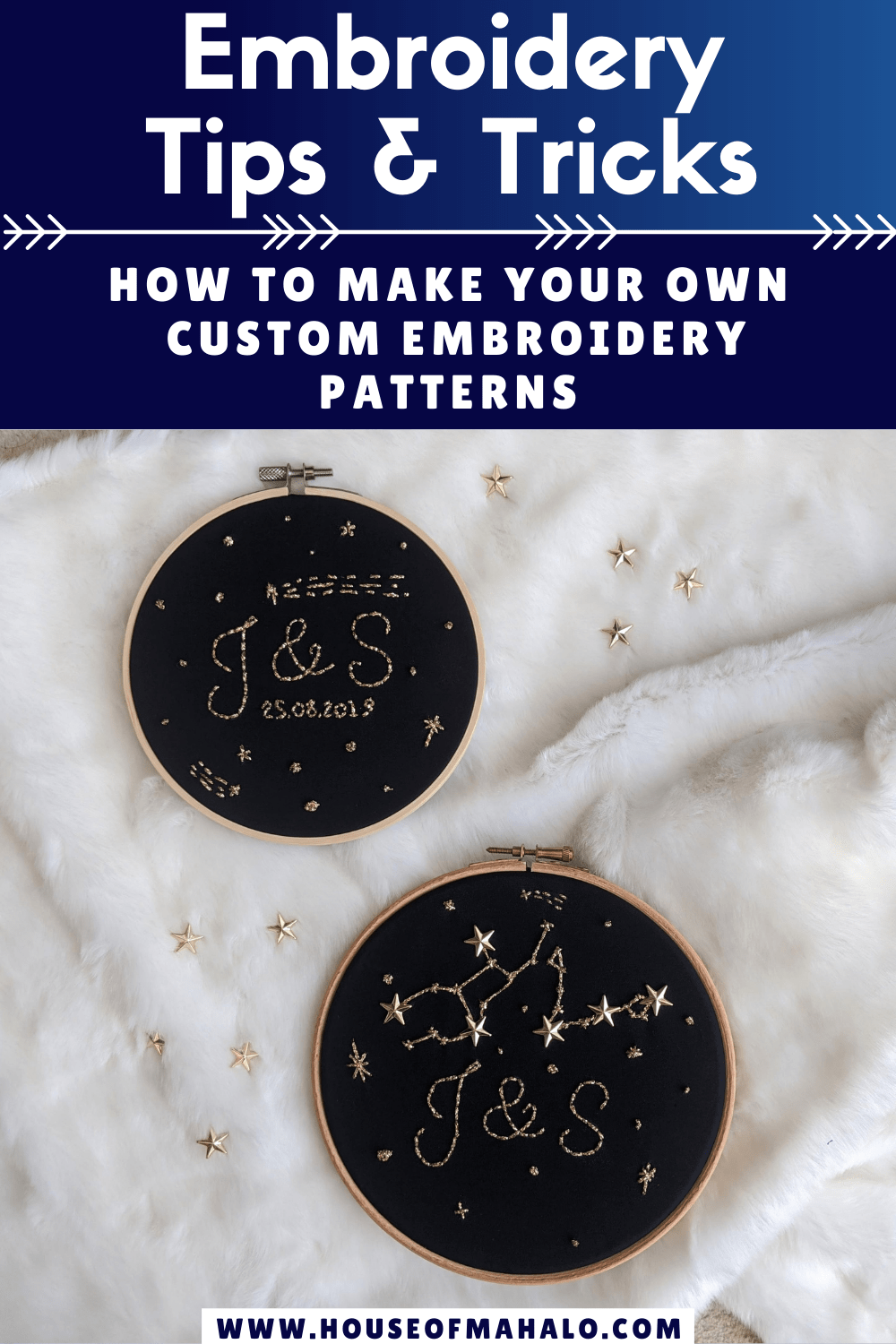
Image Source: houseofmahalo.com
Grasping the Basics of Pattern Making
What is an embroidery pattern? It is a guide. It tells you where to put your needle. It tells you what color thread to use. It shows the shape of your design.
For hand embroidery, the pattern is often a drawing on fabric. Or it is a picture you follow.
For machine embroidery, the pattern is a special file. A computer reads this file. The machine then stitches the design for you.
Making a pattern can be simple. It can also be complex. It depends on your idea. It depends on how you plan to stitch it.
Starting Your Pattern Idea
Every pattern begins as an idea. You might want to stitch a flower. You might want to stitch a name. You might want to stitch a picture from a book.
Think about your idea first.
* What do you want it to look like?
* How big should it be?
* What colors will you use?
* Will you stitch it by hand or machine?
Your answers help you choose how to make the pattern.
Simple Starts: Sketching Embroidery Patterns
The easiest way to start is to draw. You can draw your idea on paper. This is sketching embroidery patterns.
* Use a pencil.
* Draw the main shapes.
* Add smaller details.
* Think about the lines you will stitch.
If you stitch by hand, you can draw right on your fabric. Use a special pen. It washes away or disappears. You can also trace your drawing onto the fabric.
Tools for sketching:
* Pencil
* Paper
* Eraser
* Special fabric pens or pencils
Drawing by hand is great for hand embroidery pattern design. You can make the drawing just how you want it. Then you transfer it to your fabric.
Getting Your Drawing Onto Fabric (for Hand Embroidery)
You drew a great picture. Now you need it on your fabric. Here are a few ways.
- Tracing: Put your fabric over the drawing. If the fabric is thin, you can see through it. Trace the lines with a fabric pen. If the fabric is thick, put the drawing on a window. Tape the fabric over it. The light helps you see to trace.
- Transfer Paper: This paper has color on one side. Put the paper color-down on your fabric. Put your drawing on top of the transfer paper. Trace your drawing with a pen or pencil. The color will go onto the fabric. Use a color close to your fabric color or thread color.
- Heat Transfer: Some pens or pencils let you draw on paper. Then you iron the paper onto the fabric. The heat moves the drawing. Check if the pen/pencil is made for fabric.
- Water Soluble Stabilizer: This is a thin sheet. You can print your design onto it. Or draw on it. Stick it onto your fabric. Stitch right through the sheet. When you finish, wash the fabric. The sheet dissolves away. This is very easy for beginners.
Once the drawing is on the fabric, you have your pattern ready to stitch by hand.
Learning About Machine Embroidery Patterns
Machine embroidery patterns are different. You cannot just stitch over a drawing. Machines need digital instructions. These instructions tell the machine:
* Where to start stitching.
* What path to follow.
* What type of stitch to make.
* How long the stitches should be.
* When to change color.
* When to cut the thread.
This process of turning a picture or drawing into instructions for a machine is called digitizing embroidery.
What is Digitizing Embroidery?
Digitizing is like teaching a computer how to stitch your design. You use special software. Embroidery design software is the tool for this job.
The software lets you:
* Bring in a picture or drawing.
* Draw shapes and lines.
* Tell the software where the stitches should go.
* Choose the stitch type (like satin, fill, running).
* Set the size and direction of stitches.
* Choose thread colors.
It is not simply tracing a picture. You are building the stitch paths. You decide how the machine will sew the design. This makes the pattern work for machine embroidery patterns.
Getting Started with Embroidery Design Software
Many different embroidery design software options exist. Some are simple. Some are very complex and costly.
For beginners, look for software that is:
* Easy to use.
* Has helpful guides or lessons.
* Lets you do basic tasks like turn simple shapes into stitches.
Some software comes with your embroidery machine. Other software you buy separately. There are even free options to try.
Using embroidery design software takes practice. You learn how different shapes turn into stitches. You learn how to choose the best stitch types.
Simple Steps in Digitizing (Using Software)
Let’s say you want to digitize a simple heart shape for a machine.
- Open the Software: Start your embroidery design software.
- Make a New Design: Create a new blank space to work on.
- Draw the Shape: Use the software’s tools to draw a heart. Or bring in a heart picture.
- Choose Stitch Type: Tell the software you want the heart filled with stitches. Maybe choose a ‘fill stitch’. This covers the area with stitches back and forth.
- Set Stitch Settings: The software might ask about stitch density (how close stitches are). For a simple heart, the default settings might be fine to start.
- Choose Color: Select a thread color in the software.
- Add Outline (Optional): You might want an outline around the heart. Draw a line around it. Choose a ‘satin stitch’ for a thick border or a ‘running stitch’ for a thin one.
- Review: Look at the stitches the software created. Some software shows you a simulation of how it will stitch.
- Save the Design: Save your design in a format your machine can read. This is about embroidery file formats.
This is a very simple example. More complex designs need more steps and choices in the software.
Understanding Embroidery File Formats
Embroidery machines do not all speak the same language. They read different types of files. These are embroidery file formats.
It is like how computers use .doc for Word files or .jpg for pictures. Embroidery machines use formats like .DST, .PES, .JEF, .VP3, and many others.
- .DST (Tajima): A very common, older format. Many machines can read it. It holds stitch data but not color info usually.
- .PES (Brother, Babylock, Bernina): Common format for popular home machines. Holds stitch data and color info.
- .JEF (Janome): Used by Janome machines. Holds stitch and color data.
- .VP3 (Husqvarna Viking, Pfaff): Used by these machine brands. Holds stitch and color data.
There are many more formats!
When you save your pattern from your embroidery design software, you must choose the right format for your machine. The software usually has an option to ‘Export’ or ‘Save As’ and you can pick the format.
If you download machine embroidery patterns online, check the list of formats. Make sure your machine’s format is listed.
Choosing the right embroidery file formats is a key step for machine embroidery patterns.
Seeing How Vector Art Helps
What is vector art? It is a type of digital drawing. It uses math to make lines and shapes.
Regular pictures (like photos or scanned drawings) are made of tiny dots (pixels). When you make them bigger, they look blurry or blocky.
Vector art is different. You can make vector art for embroidery much bigger or smaller. The lines and shapes stay smooth and clear.
This is very helpful for digitizing embroidery.
* You can start with a simple vector shape (like a circle or star). The software knows it is a perfect shape. It is easy to tell the software how to fill it with stitches.
* If you draw your design in a vector program first (like Adobe Illustrator or Inkscape), it can be easier to digitize. The clean lines and shapes are a good starting point for embroidery design software.
* Many digitizing programs work well with vector art. They can often automatically create stitches from vector shapes.
So, if you like drawing on a computer, learning a simple vector program can help you make designs ready for embroidery design software. Vector art for embroidery makes the digitizing process smoother for clean designs.
Exploring Applique Embroidery Patterns
Applique is a fun way to add fabric shapes to your embroidery. You cut a shape from fabric. You place it on your main fabric. Then you stitch around the edge to hold it down. Machine embroidery is great for applique.
Applique embroidery patterns usually have steps for the machine:
1. Placement Stitch: A line is stitched on the main fabric. This shows you where to put your applique fabric piece.
2. Tack-down Stitch: You place the applique fabric down. The machine stitches again, just inside the edge of the placement line. This holds the applique fabric in place.
3. Trim Step: You take the hoop off the machine. You carefully cut away the extra applique fabric close to the tack-down stitch.
4. Cover Stitch: The hoop goes back on the machine. The machine stitches a border over the raw edge of the applique fabric. This border is often a satin stitch. It covers the cut edge and looks nice.
When you design applique embroidery patterns in your software, you create these separate stitch steps. The software helps you make the placement, tack-down, and cover stitches around your applique shape.
Designing for applique adds another layer to creating machine embroidery patterns. You are creating stitch paths that work with adding another piece of fabric.
Making Your Own Custom Embroidery Patterns
You can make anything into an embroidery pattern. This means creating custom embroidery patterns.
- Your Name: Easy to do with text tools in most software.
- A Child’s Drawing: You can scan or take a picture of it. Then use it as a guide to digitize.
- A Family Photo: More complex! Turning a photo into stitches (called photo-stitch or portrait embroidery) takes skill and special software features.
- A Company Logo: Often starts as a vector file. Then it is digitized carefully to look good when stitched.
Steps for creating custom embroidery patterns:
- Have Your Idea/Picture Ready: Get the image you want to stitch. Make sure it is clear.
- Choose Your Method: Hand embroidery (draw/trace) or Machine embroidery (digitize).
- If Digitizing: Open your embroidery design software. Bring in your image.
- Trace and Convert: Use the software tools to draw stitches over your image. Or use auto-digitizing tools if available (be careful, these often need editing).
- Refine: Change stitch types, angles, colors. Make sure the design looks good as stitches.
- Test: Stitch a small test version if you can. See how it looks. Make changes if needed.
Creating custom embroidery patterns lets you truly personalize your projects.
Thinking About Embroidery Stitches Design
Different stitches look different. They create different textures and effects. When you make a pattern, you decide what stitches to use. This is embroidery stitches design.
For hand embroidery:
* Will you use running stitch for a thin line?
* Will you use satin stitch to fill a shape smoothly?
* Will you use french knots for dots?
* Will you use backstitch for outlines?
You draw the design. You decide where each type of stitch will go. You can add notes to your pattern about what stitches to use.
For machine embroidery:
* The embroidery design software has stitch types.
* You choose fill stitch for large areas.
* You choose satin stitch for borders and thick lines.
* You choose running stitch for thin lines or details.
* You can choose complex stitches too.
When digitizing, you are doing the embroidery stitches design inside the software. You tell the computer exactly what stitch to make and where. Thinking about how different stitches will look is part of making a good pattern, whether for hand or machine.
A Look at Tools for Pattern Making
You do not need fancy tools to start.
Tools for Hand Pattern Design:
- Paper, pencil, eraser
- Fabric pens/pencils (washable or air-erase)
- Tracing paper
- Transfer paper
- Water soluble stabilizer (printable)
- Light source (like a window or light box)
These tools help you get your drawing onto the fabric for hand embroidery pattern design.
Tools for Machine Pattern Design:
- Computer
- Embroidery design software (essential for digitizing embroidery)
- Source image (drawing, photo, vector art for embroidery)
- Embroidery machine (to test the final pattern)
- Blank USB stick or cable (to move the pattern file to the machine)
These tools help you create the digital file for machine embroidery patterns.
Planning Your Design
Before you start drawing or digitizing, plan.
- Size: How big should the finished design be? Draw a box on your paper or set the size in your software.
- Detail: Can you stitch all the small details? Very small details can be hard to stitch, especially for machine embroidery. Lines might become too thin. Text might be unreadable if too small.
- Thread Colors: How many colors will you use? Plan where each color will go. This is important for digitizing as it tells the machine when to stop for a color change.
- Stitch Direction: For fill stitches in machine embroidery, the direction of the stitches matters. It changes how light reflects and adds texture. Plan this in your software.
Careful planning makes creating custom embroidery patterns easier and the results better.
Step-by-Step for a Simple Machine Pattern
Let’s make a simple star for a machine.
You need:
* Computer
* Embroidery design software
* Idea: a simple star
Steps:
- Open your embroidery design software.
- Start a new design.
- Set the design size. Let’s say 3 inches wide.
- Find the shape tools. Select the star tool.
- Draw a star on your design area. Click and drag to make it the size you want. You can type the exact size later.
- Look at the software’s properties window for the star.
- Choose how you want the star stitched. Do you want just an outline? Do you want it filled in? Let’s fill it.
- Select ‘Fill Stitch’ from the stitch type options.
- The software will automatically create fill stitches inside the star shape.
- Look at the angle of the stitches. If they are all going straight across, maybe change the angle to 45 degrees. This can look nicer.
- Choose a color for the fill stitches. Pick yellow.
- Now let’s add an outline. Select the star shape again.
- Find the outline options. Choose ‘Satin Stitch’ for a thicker border.
- Set the width of the satin stitch. Maybe 2mm wide.
- Choose a color for the outline. Pick blue.
- The software creates the stitches for the outline.
- Look at the stitch order. Most software stitches filled areas first, then outlines. Check if the star fill stitches before the blue outline. You can usually change the order if needed.
- Check for jumps. Sometimes the machine thread travels across open space. The software might add ‘jump stitches’. You usually want the machine to trim these. Check settings for jumps and trims.
- Look at the simulation or stitch player in the software. Watch how the design will stitch out.
- Save your design. Go to ‘File’ then ‘Save As’ or ‘Export’.
- Choose the embroidery file formats your machine uses (e.g., .PES, .DST).
- Give your file a name (like “SimpleStar.pes”).
- Save it to your computer.
- Copy the file to a USB stick.
- Put the USB stick into your embroidery machine.
- Select the design on your machine and stitch it!
This simple process shows how embroidery design software helps you go from a shape to machine embroidery patterns.
Tips for Beginners
- Start Simple: Do not try to design something very complex for your first pattern. Start with simple shapes, letters, or outlines.
- Practice Drawing: Even for machine embroidery, being able to sketch your ideas helps.
- Learn Your Software: Spend time with your embroidery design software. Watch tutorials. Practice using the tools. Learn about stitch types and settings.
- Use Good Quality Images: If you are digitizing from a picture, use a clear, high-quality image.
- Test Stitch: Always try to stitch a sample of your new pattern. It helps you find problems before stitching on your final project.
- Read About Stitches: Learn how different embroidery stitches design affect the look of your pattern.
- Connect Shapes: When digitizing, try to connect parts of your design so the machine does not have to stop and cut thread often. This makes stitching faster and cleaner.
- Think About Fabric: The type of fabric you use affects how the stitches look. Some designs work better on certain fabrics.
- Think About Stabilization: Fabric needs support to be stitched. This is called stabilization. Your pattern design can affect what stabilizer you need. Dense stitch designs need stronger stabilizer.
- Join Online Groups: Connect with other people who embroider. They can share tips and help with problems.
Learning to create your own custom embroidery patterns takes time. Be patient with yourself. Each pattern you make will teach you something new.
Hand Embroidery Pattern Design Details
Let’s go back to hand embroidery for a moment. While machine patterns are files, hand patterns are visual guides.
When creating hand embroidery pattern design:
* Line Quality: Draw clear lines that are easy to follow with a needle.
* Detail Level: Draw only the details you plan to stitch. Do not make it too complicated if you are a beginner.
* Size: Draw it the actual size you want it to be on the fabric.
* Color Notes: You can write notes on your paper pattern or a copy. Like “Use red thread here” or “Use satin stitch for this area”.
* Multiple Layers: For complex hand patterns, you might draw different parts on different pieces of tracing paper. Or use layers in a simple drawing app.
Transferring your hand embroidery pattern design carefully is key. A clear line on the fabric makes stitching much easier and the final result neater. Using methods like water soluble stabilizer can make complex hand designs simple to transfer accurately.
Comparing Hand and Machine Pattern Design
Let’s look at how the design process differs.
| Feature | Hand Embroidery Pattern Design | Machine Embroidery Pattern Design |
|---|---|---|
| Main Tool | Pencil, Paper, Fabric Pen | Computer, Embroidery Design Software |
| Pattern Format | Drawing on paper or fabric | Digital File (specific format like .PES) |
| Creation Process | Drawing/sketching, transferring to fabric | Digitizing (turning lines/shapes into stitches) |
| Detail Control | You stitch based on lines; stitches vary | Software sets exact stitch type, length, angle |
| Stitch Types | You choose/plan stitch types as you stitch or before | You select stitch types within the software |
| Editing | Redraw on paper or fabric if needed | Edit the digital file in software |
| Complexity | Limited by your drawing/stitching skill | Limited by software features and digitizing skill |
Both methods let you create beautiful designs. Machine digitizing has a steeper learning curve for the software, but hand drawing and transferring requires drawing skill and careful manual work.
Thinking About Different Design Types
- Line Art: Patterns made mostly of outlines. Great for simple hand embroidery or machine running stitch designs.
- Filled Shapes: Designs where areas are filled with stitches. Often uses satin or fill stitches in machine embroidery.
- Text: Creating words or letters. Many software programs have built-in fonts. Or you can digitize letters from an image. Custom embroidery patterns often include names or phrases.
- Applique: As discussed, involves planning fabric placement and cover stitches. Applique embroidery patterns save on stitch count and thread.
- Redwork/Bluework: Simple line art patterns often stitched in one color, traditionally red or blue. Easy to draw for hand or digitize as running stitches for machine.
Your idea might fit into one or more of these types. Knowing the type helps you decide how to approach the design process.
Advanced Concepts Briefly Mentioned (for later learning)
As you get better, you might learn about:
* Underlay Stitches: Stitches placed first under fill or satin stitches. They help stabilize the fabric and make the top stitches look smoother. Embroidery design software adds these automatically or you can control them.
* Pull Compensation: Fabric can pull together when stitches are dense. Software can add extra width to areas to make them look the right size.
* Density: How close together the stitches are. Dense stitches use more thread and make a firmer area. Less dense stitches are lighter. You control density in software.
* Manual Digitizing: Carefully placing every stitch yourself in the software. This gives maximum control but takes more time.
* Auto-Digitizing: Software tries to turn an image into stitches automatically. Useful for simple shapes but often needs a lot of editing.
For a beginner guide, focus on the basics. Drawing shapes, choosing stitch types, and saving the right file format are the first big steps.
Keeping Your Pattern Files Organized
If you start making many machine embroidery patterns, you will have many files.
* Create folders on your computer.
* Name your files clearly (e.g., “Star_Simple_3inch_PES.pes”).
* Back up your files. Save them on an external hard drive or cloud storage. Losing your designs is frustrating!
Organizing makes it easy to find your custom embroidery patterns later.
Practicing Your Skills
Making patterns is a skill. Like any skill, it gets better with practice.
* Start with simple designs.
* Try different tools and methods.
* Stitch out your designs. See what works and what doesn’t.
* Learn from mistakes. Change your design or digitizing method based on your stitch tests.
The more you practice sketching embroidery patterns, working with embroidery design software, and testing your embroidery stitches design, the better you will become at creating wonderful custom embroidery patterns.
Frequently Asked Questions
h4 What software should a beginner use for digitizing?
Many machine brands offer their own basic software. Start with that if you have it. Other options include Hatch Embroidery Basics, Embrilliance Essentials, or free options like Inkstitch (which works with Inkscape, a free vector program). Look for software that fits your budget and seems easy to learn from reviews and videos.
h4 Can I turn any picture into an embroidery pattern?
Yes, in theory, but it is not always easy or effective. Simple line art or designs with clear color blocks work best, especially for machine embroidery. Complex photos or paintings are very hard to turn into good stitch files and require advanced skills and software.
h4 Is digitizing embroidery hard?
It can be at first. There are many settings and concepts to learn (stitch types, angles, density, pull compensation). Start with simple shapes and lines. Watch tutorials and practice often. It gets easier with experience.
h4 Do I need to buy fonts for machine embroidery?
Many embroidery design software programs come with built-in fonts that are already digitized. These are the easiest to use. You can also buy special embroidery fonts (BX files for Embrilliance are popular, or other formats). Converting regular computer fonts into embroidery stitches is possible in some software but requires digitizing work.
h4 How do I know what size to make my design?
Consider where you will put the embroidery. A small design for a shirt pocket? A large one for the back of a jacket? Your embroidery hoop size for machine embroidery also limits the maximum size. For hand embroidery, consider the space on your project.
h4 What are embroidery stitches design rules?
There are no strict rules, but there are best practices. For example, avoid very long satin stitches as they can snag. Avoid making stitches too dense, which can make fabric stiff and cause needle breaks. Think about the fabric and how the stitches will lay on it.
h4 Can I share my patterns with others?
If you created the design from scratch yourself, yes! If you used someone else’s artwork or design and just digitized it, be careful about copyright. Machine embroidery patterns are usually saved in formats tied to stitch data, which you can share. Hand embroidery patterns are often shared as drawings or printable files.
Creating embroidery patterns opens up a world of possibilities for personalizing items and bringing your ideas to life in thread. Whether you draw by hand or use the power of software, the steps are about translating your vision into stitches. Start simple, learn as you go, and enjoy the creative process!