
Making your own pictures and ideas come alive in stitches on fabric feels great. This is what we call custom embroidery designs. It means you make a unique pattern that your embroidery machine can sew. Embroidery digitization is the key process here. It turns your picture or drawing into stitches your machine can understand. It tells the machine where to put the needle, what color thread to use, and what kind of stitch to make.
People make custom designs for many reasons. Maybe you want your name on a shirt, a special picture on a blanket, or your business logo on uniforms. Whatever your idea, you can turn it into an embroidery design. This guide will walk you through the steps. It will help you understand how to create embroidery pattern files that work.
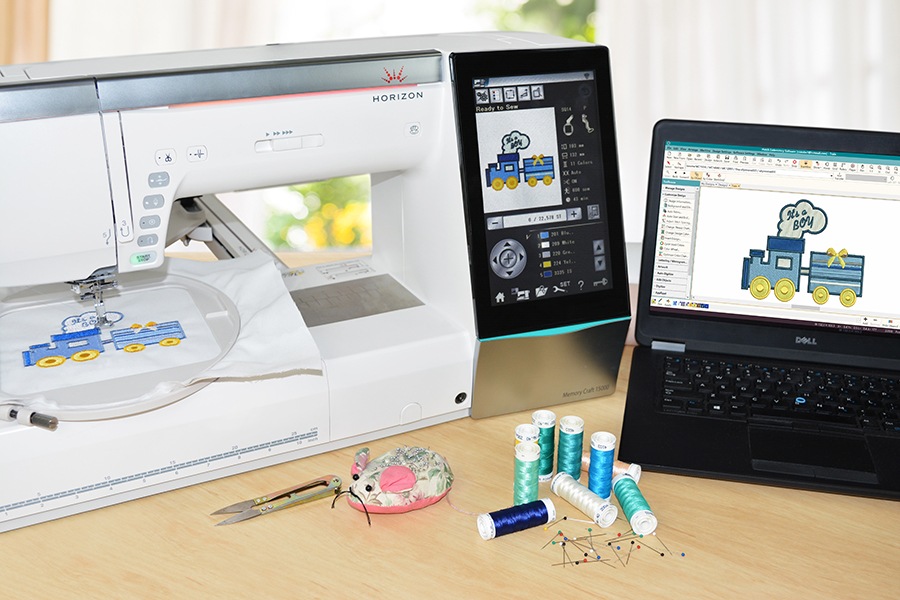
Image Source: blog.hatchembroidery.com
Deciphering Custom Embroidery Designs
So, what makes a design “custom”? It simply means it’s made just for you or for a specific purpose, not a ready-made design you bought.
Why would you want to make custom designs?
- Personal Touch: Make gifts truly unique. Put a family drawing on a pillow. Add a special date to a baby blanket.
- Starting a Business: Create your own product line. Design patches, hats, or clothing with your art.
- Branding: Get your business name or custom logo embroidery on shirts, hats, or bags. This helps people remember you.
- Unique Style: Wear clothes or decorate your home with art that no one else has.
Making a custom design gives you full control. You pick the picture, the size, the colors, and how the stitches look.
Gathering Your Tools
Before you start making designs, you need a few things. Think of these as your art supplies for digital stitch-making.
- A Computer: You need a computer. It needs to be fast enough to run design software. Most modern laptops or desktops work fine.
- Embroidery Machine: This is what sews the design. Machines range from small ones for home use to big ones for businesses. You don’t need the machine to make the design file, but you need it to sew it out later.
- Embroidery Design Software: This is the main tool for creating and changing designs. We will talk more about this. This software lets you
create embroidery patternfrom scratch or change pictures. - Threads: You need thread in the colors you want your design to have.
- Needles: The right needle for your fabric and thread.
- Stabilizers: These go behind the fabric. They keep the fabric still while the machine stitches. This stops the fabric from pulling or moving. There are many types for different fabrics.
The most important tool for design creation is the software. It’s where the magic happens.
Choosing Your Embroidery Design Software
This is where you will spend most of your time making your custom patterns. Embroidery design software is special. It doesn’t just draw pictures. It helps you plan how stitches will be laid down.
There are many software options. They range from simple, free ones to complex, expensive ones.
- Basic Software: Sometimes comes with your machine. Good for simple text or combining existing designs. May not let you
digitize artwork for embroidery. - Mid-Level Software: Offers more tools. You can edit designs well. Some let you do basic digitizing. Good for serious hobbyists.
- Professional Software: Very powerful. Lets you do complete, high-quality
embroidery digitization. Has many stitch options and tools for different fabrics. Needed if you want to make complex designs or digitize for others.
When looking for the best embroidery design software for you, think about:
- What you want to do: Just combine designs? Or turn your own pictures into stitches?
- How much you want to spend: Software costs can be very different.
- How easy it is to learn: Some programs are complex. Look for tutorials or classes.
- What file types it saves: Does it save in the format your machine uses? (More on
embroidery file formatslater). - Digitizing Tools: Does it have tools to help you
convert image to embroidery filemanually or automatically?
Popular software names include Embrilliance, Hatch, Wilcom, Embird, and Bernina Embroidery Software. Research them to see which fits your needs and budget. Many offer free trials.
The Core Steps to Create Your Design
Here is the step-by-step process to make your own embroidery design. This is the heart of how to make custom embroidery designs.
h4: Step 1: Start with Artwork
Every design begins with an idea. This idea needs to become a clear picture.
- Your Idea: What do you want to stitch? A picture? A logo? Text? A drawing?
- Get the Picture Ready: You need a digital image of your idea.
- If it’s a drawing, scan it.
- If it’s a logo, get the digital file.
- If it’s a photo, use the photo file.
The better the image quality, the easier it is to digitize artwork for embroidery. A clear, simple image is best. Blurry or complex photos are hard to turn into stitches. Vector images (like those from drawing programs like Adobe Illustrator) are often best because you can make them any size without losing quality. However, a good quality JPG or PNG can also work.
Simplify your image if needed. Reduce the number of colors. Make lines thicker if they are too thin. Think about how it will look in stitches, not just on screen.
h4: Step 2: Bring Artwork into Software
Open your embroidery design software. Now, bring your picture into the program.
- Import Image: Find the “Import” or “Add Image” button in your software. Choose the picture file you prepared.
- Set Size: Decide how big you want the final stitched design to be. Set the size in the software. Make sure it fits inside the hoops you have for your machine. The software will show you the hoop size.
Your picture will appear on the screen. This picture is a guide. It shows you where you need to put stitches.
h4: Step 3: Beginning the Embroidery Digitizing Process
This is the most important step. It’s where you convert image to embroidery file. It’s not just clicking a button that says “convert.” While some software has “auto-digitizing” (we will talk about that soon), for the best results, you will guide the software. This is called manual digitizing or guiding the embroidery digitizing process.
Think of it like this:
* The picture is the map.
* You are the planner deciding the roads (the stitches).
* The software is your tool for drawing the roads.
You will use tools in the software to draw shapes over your picture. For each shape, you will tell the software:
- What kind of stitch to use (like fill, satin, or outline).
- What color the thread should be for that part.
- In what direction the stitches should go.
You work section by section, color by color, or shape by shape, tracing and telling the software how to turn each part of the picture into stitches.
h4: Step 4: Choosing Stitch Types
Embroidery machines use different stitch types to create different looks and fill areas. The main ones you will use in embroidery design software are:
- Fill Stitches: These cover larger areas of color. They lay stitches back and forth across a shape. Think of filling in a coloring book page.
- Use for: Large shapes, backgrounds, solid color areas.
- Example: A large stitched letter, the inside of a heart shape.
- Satin Stitches: These are stitches that go back and forth very closely together across a narrow shape. They look raised and shiny.
- Use for: Borders, outlines, small text, thin shapes.
- Example: The edge of a patch, a small name, outlines of shapes.
- Run Stitches: These are simple lines of single stitches, like drawing with a pen.
- Use for: Fine details, outlines that don’t need to be thick, simple borders, details within fills.
- Example: Whiskers on an animal, a simple border line, details drawn on top of a filled area.
You choose the stitch type for each part of your design based on how you want it to look and the shape you are stitching.
h4: Step 5: Setting Stitch Direction and Angles
This might seem like a small detail, but it’s very important in embroidery digitization. Stitch direction (also called angle) is the way the stitches lie within a shape.
- Looks: Changing the angle of fill stitches can make areas look different even with the same color. Stitches angled differently catch the light in different ways. You can use angles to show movement or texture.
- Density and Pull: Stitch angle affects how the stitches lay next to each other. This affects the “density” (how close together they are) and something called “pull.” Pull is when the fabric gets slightly pulled in by the stitches. Setting angles correctly helps manage this and keeps your design looking good and flat.
You use tools in the software to draw lines or points that show the desired stitch direction for each section you digitize.
h4: Step 6: Adding Underlay Stitches
Underlay stitches are stitches that sew first, underneath the main stitches you will see. They are hidden but very important for a good design.
Why use underlay?
- Stabilize Fabric: They help keep the fabric flat and stable during stitching.
- Give Body: They provide a base for the top stitches to lie on, making them look smoother and sometimes puffier.
- Prevent Show-Through: On fabrics like terry cloth or fleece, underlay helps push down the fabric’s nap (fuzz) so the top stitches don’t sink in.
- Define Edges: They help make the edges of satin stitches crisp and clean.
Your embroidery design software will often add default underlay, but you can change it. Different stitch types and fabrics need different types of underlay.
h4: Step 7: Managing Color Changes and Trims
Your software helps you tell the machine when to stop for a new color. As you digitize different parts of your image, you assign a color to each section. The software puts in a “color stop” command between sections of different colors.
Also, when the design finishes one area and needs to move to another area that isn’t right next to it, the machine makes a “jump stitch.” These are long threads on the back (and sometimes the front) connecting the areas. Good embroidery digitization minimizes these jumps or adds “trim” commands. A trim command tells the machine to cut the thread before making the jump. This keeps the back of your embroidery neat and saves you from cutting lots of little threads by hand.
You control where color stops and trims happen as you build the design in the software.
h4: Step 8: Accounting for Fabric and Stabilizer
Not all fabrics are the same. A design digitized for a stable cotton t-shirt will not stitch well on a stretchy knit or thin silk without changes.
- Fabric Type: Stretchy fabrics need more underlay and possibly different stitch density (how close stitches are) to prevent the design from getting distorted. Fabrics with nap (like towels) need underlay to push down the fibers. Thin fabrics need light density to avoid becoming too stiff.
- Stabilizer: Choosing the right stabilizer is also key. It works with the digitizing to support the fabric. Different stabilizers are used for different fabrics and design types (e.g., cut-away, tear-away, wash-away).
Good embroidery design software lets you adjust settings like density, pull compensation (to fight fabric pulling), and underlay based on the fabric type you plan to use. Always think about the final fabric when digitizing.
h4: Step 9: Checking and Editing Your Design
Once you’ve traced all parts of your image and set stitch types, colors, and directions, your digitized design is ready to be checked.
- Visual Check: Look at the design in the software. Does it look like your original artwork? Are there gaps between colors? Are stitch directions correct? Are there extra jumps?
- Stitch Simulator: Most software has a tool to show you how the design will stitch out step-by-step. Watch this carefully. Look for weird movements or too many stops/trims.
- Editing: Go back and fix anything that doesn’t look right. Add missing stitches, change angles, adjust density, add trims. This is a key part of the
embroidery digitizing process.
It’s much easier to fix problems in the software than after you’ve started stitching!
Decoding Embroidery File Formats
Your embroidery machine cannot stitch directly from a picture file like JPG or PNG. It needs a special file type that contains all the stitch commands you created during embroidery digitization. These are the embroidery file formats.
Think of it like different languages that different machines speak.
- Why Different Formats? Machine makers created their own file types. A design saved for a Brother machine (PES) might not work on a Janome machine (JEF) without conversion.
- Common Formats:
- DST: A very common, older format. Works on many industrial and some home machines. Stores stitch commands but usually no color info or design picture.
- PES: Used by Brother, Babylock, and Deco machines. Stores stitch data, colors, and sometimes a design picture.
- JEF: Used by Janome machines. Stores stitch data and colors.
- HUS: Used by Husqvarna/Viking machines.
- VIP/VP3: Newer formats used by Husqvarna/Viking and Pfaff machines. More advanced than HUS.
- EXP: Used by Melco machines (industrial) and also a simple format many home machines can read. Stores stitch data.
- ART: Older format used by Bernina. Newer Bernina uses EXP or ART V4/V5/V6/V7/V8.
Your embroidery design software must be able to save in the format your specific embroidery machine reads. Most good software can save in many different formats. When you finish digitizing, you will save your design in the correct embroidery file format.
Manual Digitizing vs. Auto-Digitizing: What’s the Difference?
When you want to digitize artwork for embroidery, you have two main paths in the software:
- Auto-Digitizing: You click a button, select some colors, and the software tries to automatically trace your picture and turn it into stitches.
- Manual Digitizing: You use the software’s tools to draw the shapes, pick stitch types, set directions, and add underlay yourself, guided by your artwork image. This is the core
embroidery digitizing processthat skilled people do.
Let’s compare them:
| Feature | Auto-Digitizing | Manual Digitizing |
|---|---|---|
| Speed | Very fast (a few clicks) | Takes much longer (hours, sometimes days) |
| Ease of Use | Very easy (software does the work) | Requires learning and skill |
| Quality | Often poor for complex designs or photos. Can have bad stitch angles, too many trims, thick stitches. | High quality. You control every stitch for the best look. |
| Control | Almost none over stitch types, angles, underlay, trims. | Full control over every aspect of the design. |
| Best For | Very simple, graphic shapes with distinct colors; maybe simple text. Not custom logo embroidery or photos. |
Complex designs, logos, text, photos, designs for specific fabrics. |
Conclusion: While auto-digitizing is quick, it rarely produces a high-quality result that stitches out well, especially for custom logo embroidery or detailed pictures. Stitches might be too dense (making the design stiff), angles might be wrong (causing gaps or pull), and there might be too many thread breaks or trims.
For truly good custom embroidery designs, especially if you plan to sell them or put them on valuable items, manual embroidery digitizing is almost always needed. It takes time to learn, but the results are worth it. You become the expert telling the machine exactly how to sew your design for the best possible look.
Preparing for Stitch-Out
You’ve finished the embroidery digitizing process and saved your design in the right embroidery file format. Now it’s time to sew it!
- Save the File: Make sure you saved it in the specific format your machine uses (like PES, JEF, DST, etc.).
- Transfer to Machine: Get the file from your computer to your embroidery machine.
- Use a USB stick (most common).
- Connect the machine directly to the computer with a cable (less common now).
- Use Wi-Fi if your machine has that feature.
- Hoop the Fabric: Place your fabric in the embroidery hoop. Make sure it is smooth and tight like a drum. Put the right stabilizer behind the fabric inside the hoop. This is very important for a good stitch-out.
- Load the Design: Select your design file on your machine.
- Set Colors: The machine will show you the color stops. Put the first thread color on the machine.
- Test Sew: This is crucial! Always sew your new custom design on a scrap piece of the same fabric (with the same stabilizer) that you plan to use for the final product.
- This test stitch-out shows you if the design looks good.
- Does it have gaps? Are stitches too dense? Are angles correct? Are the edges clean? Are there too many trims?
- Look at the front and back of the test sew.
If the test sew is not perfect, go back to your embroidery design software. Make changes to the design based on what you saw. Re-save, transfer, and test again. Repeat until you are happy with the result. Only then sew on your final item.
Tips for Better Custom Designs
Making great custom embroidery designs takes practice. Here are some tips to help you get better results:
- Keep it Simple: Especially when starting. Small designs or fine details are hard to stitch well. Simple shapes and bold lines work best for embroidery.
- Avoid Tiny Text: Text needs to be a certain size to be readable in stitches. Very small text often becomes a blurry mess. Use satin stitches for text and make it a reasonable size (check your software for recommended minimums).
- Consider the Fabric: Always think about what you are sewing on. This affects how you digitize (density, underlay) and what stabilizer you use.
- Use Good Artwork: A clean, clear source image makes
embroidery digitizationmuch easier and the result better. - Learn Your Software: Spend time learning the tools in your
embroidery design software. Watch tutorials. The better you know your software, the better designs you can create. - Practice Manual Digitizing: Resist the urge to rely only on auto-digitizing. Practice manual techniques. It makes a big difference in quality.
- Test Everything: We said it before, but it’s worth saying again. Always test sew your designs before stitching on the final product.
- Think about Stitch Flow: As you digitize, plan the order in which parts will sew. A good stitch flow reduces jumps and makes the stitching process smoother for the machine.
Frequently Asked Questions (FAQ)
h4: Can I just use any picture I find online?
You can import many picture types into embroidery design software. But you must have the right to use the picture. If it’s someone else’s art or a logo, you need permission to digitize artwork for embroidery and stitch it, especially if you plan to sell the finished item. For personal use, you can digitize photos of your family, your own drawings, or images you have permission to use.
h4: Is free embroidery design software good enough?
Free software is great for learning the basics of stitch editing, changing colors, or combining designs you already have. However, most free options do not have the powerful tools needed for high-quality manual embroidery digitizing from scratch. If you want to convert image to embroidery file well, you will likely need paid software.
h4: How long does it take to digitize a design?
It depends a lot on the design’s size and complexity. A simple, small logo might take 30 minutes to an hour of manual embroidery digitizing. A complex picture with many colors and details could take several hours, even a full day or more for very detailed work. Learning the software makes you faster over time.
h4: Do I need to be an artist to make custom designs?
No, you don’t need to be a great artist. You need to be able to work with images and learn to use the software tools. You are turning an existing image into stitches. A good eye for detail and how stitches will look helps, but you don’t need to be able to draw the original artwork yourself (unless you want to!).
h4: Can I sell the embroidery designs I create?
Yes, if you did the embroidery digitization yourself and you have the right to use the original artwork, you can usually sell the digital embroidery file formats you create or sell items with your stitched designs on them. Be careful about copyright and trademarks, especially with logos or popular characters.
Wrapping Up
Making custom embroidery designs is a rewarding skill. It lets you create truly unique items and express your creativity. The embroidery digitizing process takes time and practice to master, especially manual embroidery digitizing. You need the right embroidery design software and a willingness to learn.
By following these steps – starting with clear artwork, choosing your software, carefully digitizing layer by layer, understanding embroidery file formats, and always testing – you can turn your ideas into beautiful stitches. It’s a process, but one that opens up a world of personalized possibilities. Grab your software, choose a picture, and start stitching your vision!